 Yusral
Create an account and sign in
Register, confirm your email address, sign in and accept an invitation.
There are two ways to start: you create an account for your organisation yourself, or a colleague invites you. If you were invited, go straight to Accept an invitation.
Create an account
Fill in your details
Go to the registration page and fill in your Name, your Work email address and a Password. Tick the box to accept the terms of service and confirm you have read the privacy statement, and click Create account. The links to both texts open in a new tab, so what you have already filled in stays put. Yusral records when you agreed.
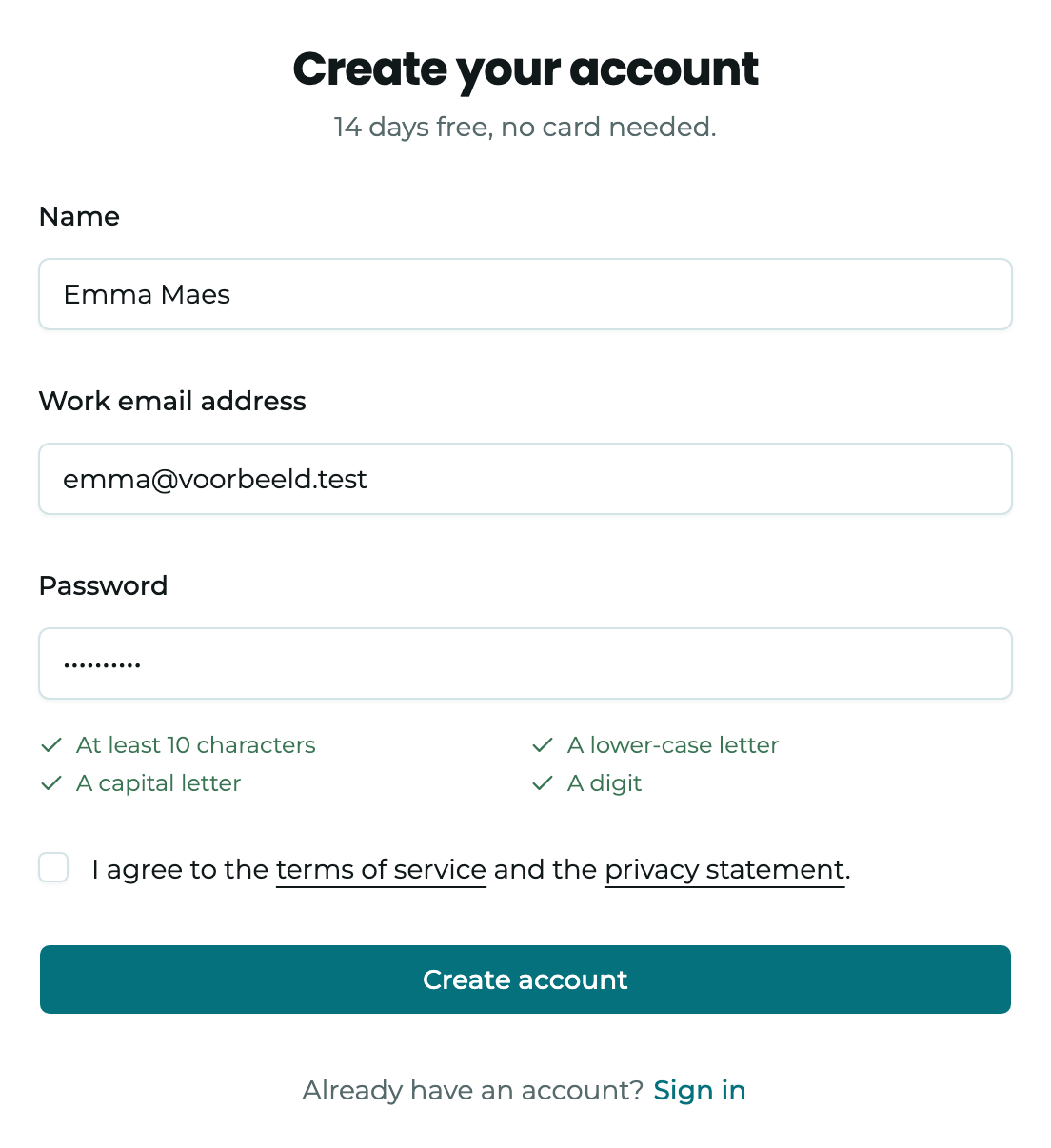
Your password must be at least 10 characters long, with a lowercase letter, an uppercase letter and a number. As you type, you see which rules are already met.
Confirm your email address
You get an email with a link. It opens a Yusral page: click Confirm email address and you are signed in straight away. If the link no longer works, sign in and a new one is sent right away. No email? Check your spam folder, or click Send the email again. After that, you have to wait a moment before you can send it again.
Did you already have an account with that address? Then no new email arrives and you can simply sign in.
Set up your organisation
After confirming, you set up your organisation: the name, your sector, your subscription and your team. This is explained in Set up your organisation.
The first 14 days are free, with no payment details.
Sign in
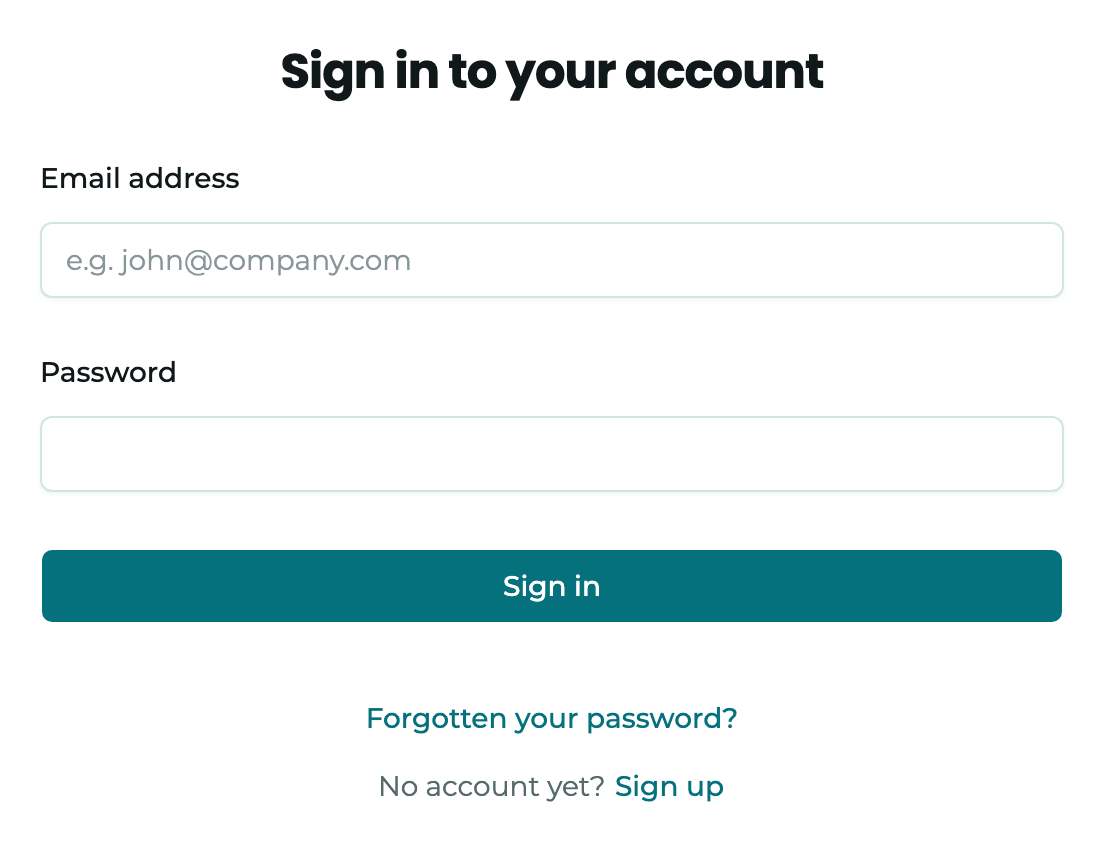
Go to the sign-in page, fill in your Email address and Password and click Sign in.
With your Microsoft account
If your organisation has set up signing in with Microsoft, Yusral recognises this from your email address. As soon as you have typed your work address, Your organisation signs in with Microsoft. appears below the field. The password field disappears and the button becomes Continue with Microsoft. Click it and sign in at Microsoft.
- Do you want to sign in with a password anyway, for example because Microsoft is down for a moment? Click Sign in with a password. Whether that is allowed depends on your organisation.
- If your organisation has made SSO required, an address on your organisation's domain only gets in through Microsoft. If you try with a password, you see Your organisation only allows signing in with Microsoft, not with a password. Only the owners keep their password, for when Microsoft is not working.
- Signing in with Microsoft only works once a colleague has invited you. If you see You have not been invited to this organisation. Contact your administrator., ask for an invitation.
More on this for administrators: Signing in with Microsoft.
With two-factor authentication
If two-factor authentication is on, Yusral asks for a code from your authenticator app after your password. Fill it in under Verification code and click Confirm.
- Tick Trust this device for 60 days on a computer that only you use. Yusral then only asks for the code there again after 60 days.
- Don't have your phone to hand? Click No access to your app? Use a recovery code and fill in one of your recovery codes under Recovery code. Each code works once.
Has your organisation made two-factor authentication required and you have not set it up yet? Then after signing in you first see Set up two-factor authentication. Only once that is done can you carry on working. People who sign in with Microsoft don't get this screen: your organisation then handles the extra security at Microsoft.
Setting up two-factor authentication: see Password and two-factor authentication.
Forgotten your password
On the sign-in page, click Forgotten your password?, fill in your email address and click Send link. Through the link in the email, you choose a new password: fill it in under New password and Confirm password, and click Set password.
Do you see This link no longer works? Then it has expired or has already been used. Click Request a new link.
If your organisation only lets you sign in with Microsoft, no link is sent. The page then says why. In that case, you manage your password at Microsoft.
Are you signed in and want to change your password? You do that in your profile, see Password and two-factor authentication.
Accept an invitation
A colleague invites you from Yusral. You then get an email with a link. The page that opens shows who invited you, for which organisation and with which role.
- Don't have an account yet? Click Accept invitation, fill in Your name, choose a Password, repeat it under Confirm password and click Create account. You land straight in the organisation.
- Already have an account? Click Sign in and then Accept invitation. If you work for several organisations, you switch later with your organisation's name at the top of the sidebar.
- Does your organisation sign in with Microsoft? Then there is a Sign in with Microsoft button. You don't need to choose a password.
On your first visit, a bar at the top asks you to agree to the terms and the privacy statement. Click Agree. The bar comes back if those texts change later.
An invitation stays valid for 48 hours. Do you see Invitation expired? Ask your colleague to invite you again.
Invitation to a different address
Sign in with the email address you were invited on. If you are already signed in with a different address, the page tells you. Click Sign out and sign in with the right address.