 Yusral
Signing in with Microsoft (SSO)
Let your colleagues sign in with their Microsoft work account instead of a separate password.
With SSO, your colleagues sign in with their Microsoft work account, through Microsoft Entra ID (formerly Azure AD). They don't have to remember an extra password, and anyone who leaves and is disabled in Microsoft can no longer get into Yusral either.
You need the Owner or Admin role in Yusral, someone who is allowed to create app registrations in your Microsoft environment, and access to the DNS of your email domain.
1. Create an app registration in Microsoft
Do this in the Microsoft Entra admin center, under App registrations > New registration.
- Give the app a name your colleagues recognise, for example the name of Yusral.
- Under the account types, choose: accounts in this organisational directory only.
- Under Redirect URI, add a Web address. You see which address that is in Yusral under Azure redirect URI (step 2). Copy it exactly.
- Under Certificates & secrets, create a new client secret. Note down the value straight away: Microsoft only shows it once.
On the app's overview page, you find the Directory (tenant) ID and the Application (client) ID.
2. Set up SSO
Go to Settings > Organisation, to the Access and security block. Next to Sign in with Microsoft (SSO), click Set up. The SSO configuration panel opens at the side. At the top is the Azure redirect URI you needed in step 1, with a button to copy it.
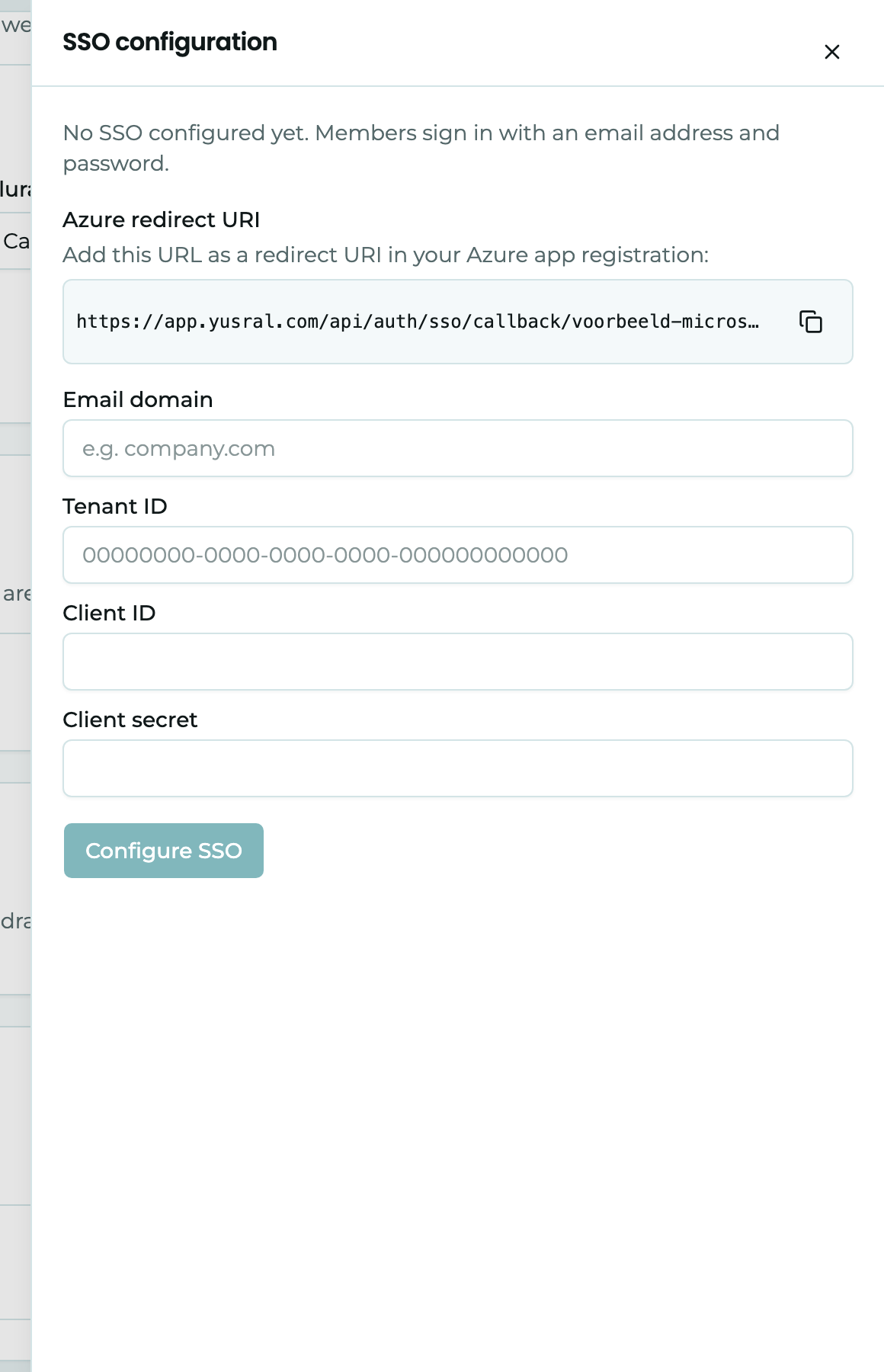
| Field | What you fill in |
|---|---|
| Email domain | The domain of your work addresses, such as voorbeeld.be |
| Tenant ID | The Directory (tenant) ID from Microsoft |
| Client ID | The Application (client) ID from Microsoft |
| Client secret | The value of the client secret |
Click Configure SSO. You then see Domain not verified yet. Until you have done the next step, nobody can sign in with SSO.
3. Verify your domain
This is how you prove that the email domain is yours. The panel shows a TXT record with a Name and a Value, each with a button to copy it.
- Add that TXT record to your domain's DNS, at your domain registrar or hosting provider. The name starts with
_sso-verification., followed by your domain. - Then click Verify domain in Yusral.
If it works, you see SSO is active. The Access and security block then shows Active for with your domain. A DNS change sometimes takes a while. If verifying doesn't work straight away, try again later.
You can't use a domain that another organisation has already verified.
4. Invite colleagues
SSO doesn't create accounts for everyone in your Microsoft environment. Invite colleagues first as usual, see Members and roles. That way, you decide yourself who gets access, even though everyone has a Microsoft account.
On the sign-in page, Yusral recognises your domain as soon as someone types their email address. Below the field, it then says Your organisation signs in with Microsoft. and the main button becomes Continue with Microsoft. With Sign in with a password, someone can choose their password anyway. If SSO is required, that doesn't work, see below.
Require SSO
As soon as your domain is verified, the Require SSO switch appears in the Access and security block. If you turn it on, everyone with an address on your domain can only sign in with Microsoft. Signing in, creating an account, setting a password with an invitation and resetting a password no longer work with a password.
Owners are not covered by this: they keep their password, for when Microsoft is not working.
If you delete SSO, Require SSO is turned off again too.
Good to know
- Two-factor authentication: people who sign in with Microsoft are not covered by Require two-factor authentication. You handle the extra check at Microsoft.
- Secret expired: a client secret is only valid for a while, for example 6 or 24 months. Create a new one in Microsoft before it expires. Open the panel with Manage, fill in the fields again and click Replace configuration. If you use the same domain, it stays verified. If you do nothing, nobody can sign in with Microsoft any more.
- Turn off SSO: with Delete SSO in the panel, you stop signing in with Microsoft. Confirm with Delete. Colleagues without a password then request one with Forgotten your password? on the sign-in page.