 Yusral
Set up your organisation
The three steps after you register, and what your choice of sector sets up for you.
After you confirm your email address, Yusral takes you through three steps: Organisation, Subscription and Your team. At the top, you see which step you are on. If you stop halfway, you come back to the step you were on next time.
1. Organisation
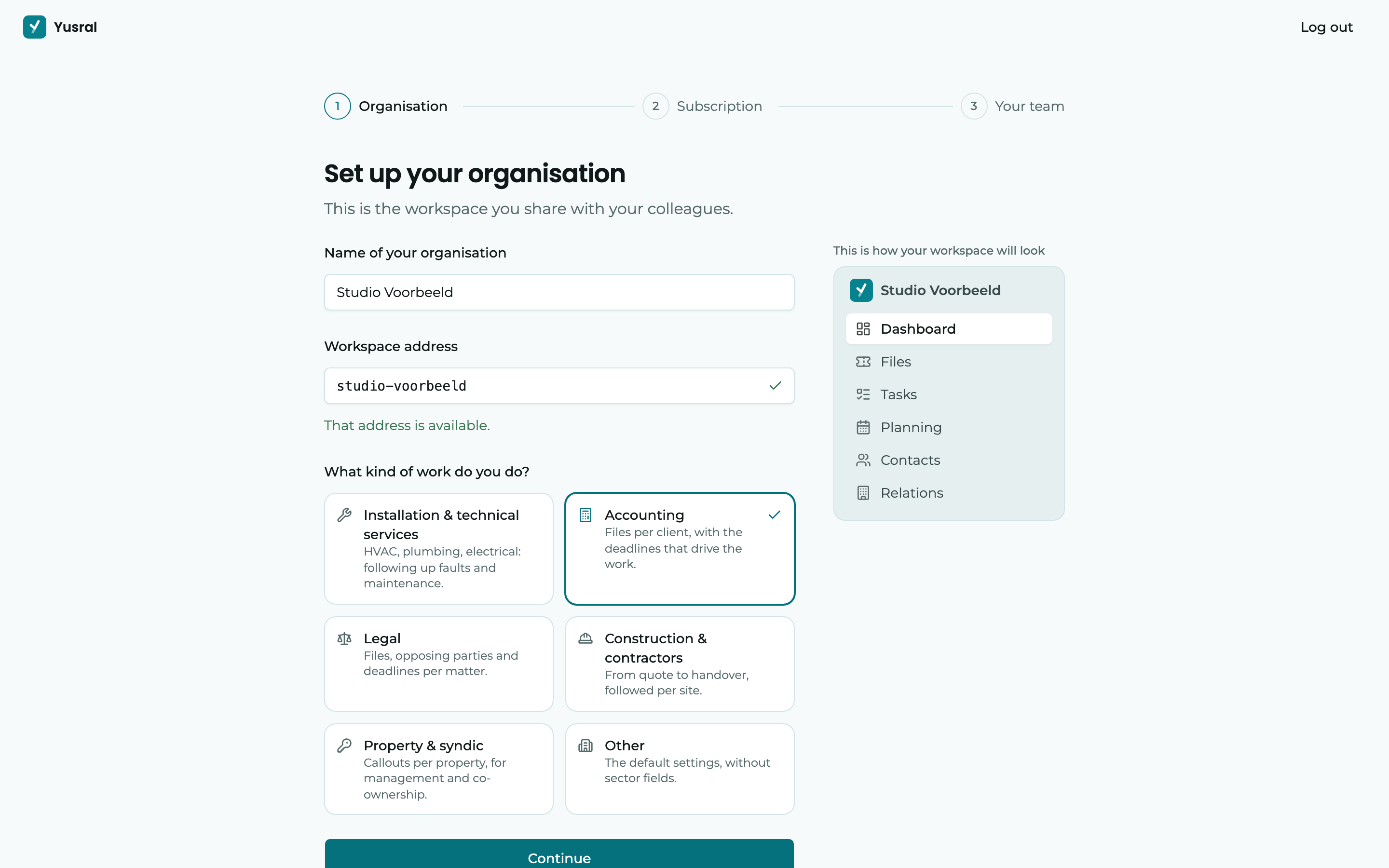
At the top, you choose your Language and your Appearance: Light, Dark or System. Yusral also sets up your workspace in that language, see In your language. If you choose another language, the page reloads in that language. What you already filled in stays.
- Name of your organisation: as your customers and colleagues know it.
- Workspace address: a short name for your organisation in Yusral, with only lowercase letters, numbers and hyphens. It is filled in as you type the name, and you see straight away whether it is still free.
- What kind of work do you do?: click the sector that fits best. See What your sector sets up below.
Below the sectors is What we set up for you: everything the chosen sector creates, with the real names. Think of the statuses, priorities, types, categories, extra fields, quick replies and deadline reminders. Click another sector, and the list changes with it.
Under This is how your workspace will look, you see the result straight away: the menu with your organisation's name and the word your sector uses for a case.
Finally, tick the box to accept the terms of service and the data processing agreement on behalf of your organisation. Your organisation is the customer, and the data processing agreement governs how Yusral processes its data. Yusral records who accepted it, when and which version; you find that later under Settings > Organisation.
Click Continue.
2. Subscription
Choose Monthly or Yearly, and under Starter or Professional, click Start 14 days free. You then go to the payment page of Stripe, our payment partner. Prices exclude VAT. With Yearly, you see what it costs per month, with the monthly price struck through beside it. Below that is what you pay per year. On the payment page, you also fill in your VAT number, so it appears on your invoices.
During the trial, you don't have to pay anything yet. If you don't add a payment method, the subscription stops by itself after 14 days. So nothing is charged unless you set it up yourself.
For larger teams, there is also Enterprise below the two subscriptions, with tailored arrangements. Click Get in touch.
What each subscription includes is described in Subscription and billing.
3. Your team
Under Email addresses, type your colleagues' addresses and press Enter after each one. Then click Send the invitation (or Send … invitations if there are more). Everyone gets the Member role. You can change that later in Members and roles.
You see straight away what your subscription will cost after the trial with your team included. An invitation counts as soon as it has been accepted.
Would you rather look around first? Click Skip. You can also invite colleagues later.
What your sector sets up
Your choice under What kind of work do you do? decides how Yusral looks from day one: what your customer requests are called, which extra fields there are and which reminders are on.
The table shows what is set up when you use Yusral in English.
| Sector | A customer request is called | Examples of extra fields |
|---|---|---|
| Installation & technical services | Job | Address, Appliance type, Warranty until |
| Accounting | File | Company number, Tax year |
| Legal | File | Opposing party, Court, Docket number |
| Construction & contractors | File | Site address, Client, Start date |
| Property & syndic | Job | Owners' association number, Building |
| Other | Case |
A sector also sets up matching statuses, types, categories and quick replies. Deadline reminders are on straight away in every new organisation.
With Legal, there is also an extra role ready: Member (own work only). Someone with that role only sees the matters and tasks assigned to them. Nobody gets this role automatically: you choose it per person, when you invite them or later under Settings > Members.
In your language
Everything Yusral sets up is in the language you choose in the first step: the statuses and priorities, the types and fields, and the automatic email to your customers. That language also becomes your organisation's language.
The word for a case is different: every colleague sees it in their own language. If you choose Installation & technical services, someone who works in French sees Intervention, for example, and someone who works in Dutch sees Interventie.
None of this is fixed. An administrator can change all of it later under Settings, see Organisation and Set up service.
Next steps
The dashboard has a Get started card with the next steps, such as connecting your mailbox. Start there, or read the Tour first.