 Yusral
API and MCP
Let your own software work with your data, or connect an AI assistant.
The API and MCP are part of the Professional subscription.
There are two ways to let other software work with Yusral:
- The API: for your own software or an integration a developer builds, such as creating cases from your website or updating relations from an accounting package.
- MCP: for AI assistants such as Claude or ChatGPT. They can then read and update your cases, tasks and customers when you ask, and prepare replies that you check and send.
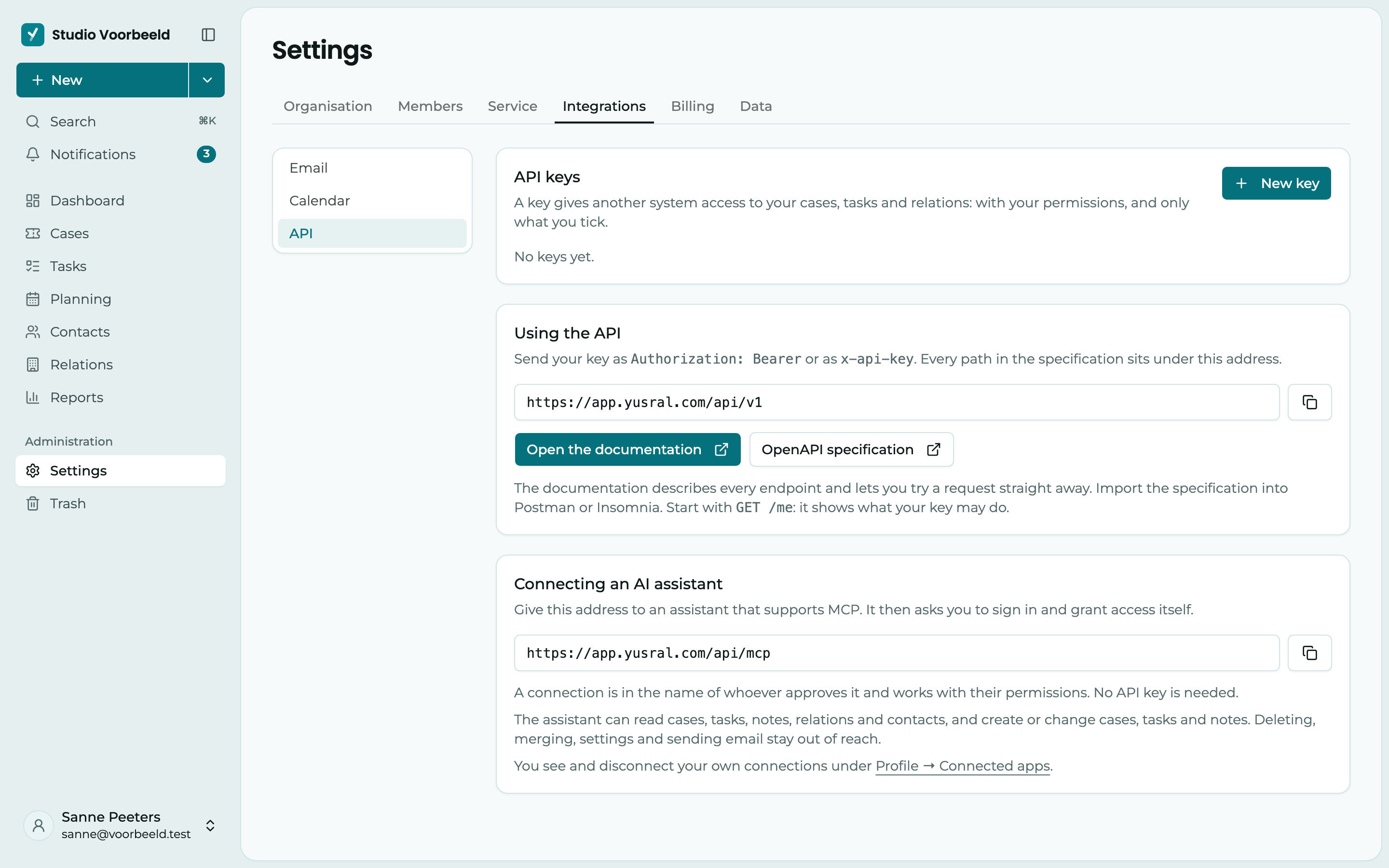
Everything is under Settings > Integrations > API.
Connect an AI assistant (MCP)
- Copy the MCP address under Connecting an AI assistant. It is
https://app.yusral.com/mcp. - Add the address as a connector in your AI assistant.
- The assistant asks you to sign in to Yusral and give access. The screen says what the app can do: read, create and change your cases, tasks, notes, relations and contacts, and suggest a reply that you check and send yourself. Read it and click Grant access.
You don't need an API key for this. The connection is in the name of whoever approves it and works with their permissions: what you are not allowed to see or do, the assistant can't either. If you are a member of more than one organisation, the access applies to all your organisations, and the assistant first asks which one it should work in.
What an assistant can do
| Tool | What it does |
|---|---|
find_cases | Search cases, with free text and filters such as status or assignee |
get_case | Read one case, with the most recent notes, messages and all tasks |
find_tasks | Search tasks across the whole organisation |
search_everything | Search cases, relations, contacts and tasks at once, including the text of notes and messages |
get_customer | Read one relation with its contacts and most recent cases, or one contact with their relations |
get_vocabulary | Your organisation's statuses, priorities, types, categories, sources and members |
create_case | Open a case |
update_case | Change a case; every change appears in the history in your name |
add_case_note | Add an internal note, for colleagues only |
draft_reply | Prepare a reply to the customer, see below |
create_task | Create a task, on a case or standalone |
update_task | Change a task or tick it off |
save_relation | Add or change a relation |
save_contact | Add or change a contact, and link it to relations |
list_organisations | Show your organisations, only if you are a member of more than one |
What an assistant can't do: delete, merge, change settings, members or billing, or send email itself.
Replies the assistant prepares
If you ask the assistant to reply to a customer, it writes a draft. Nothing goes to the customer. The draft waits in the case, under Compose, as Draft from your AI assistant. Read it, choose Use to put it in the editor and adjust it where needed, and send it yourself. Discard throws it away. A new draft for the same case replaces the previous one.
You revoke access under Profile > Connected apps, see Outlook calendar and connected apps.
Create an API key
You create a key as Owner or Admin.
- Under API keys, click New key.
- Give the key a Name that says what it is for, such as Integration with Exact.
- Choose the Validity: After 30 days, After 90 days (the default), After a year or Never expires. Only choose Never expires for an integration that truly has to keep working.
- Under Permissions, tick what the key can do. Don't give more than needed.
- Click Create key and copy the key straight away. You only see it now. Lost it? Create a new one and revoke the old one.
You can give a key these permissions:
| Part | Permissions | In the API |
|---|---|---|
| Cases | View, Also view colleagues' cases, Create, Edit | ticket:read, ticket:readAll, ticket:create, ticket:update |
| Tasks | View, Also view colleagues' tasks, Create, Edit | task:read, task:readAll, task:create, task:update |
| Notes | View, Create | note:read, note:create |
| Relations | View, Create, Edit | company:read, company:create, company:update |
| Contacts | View, Create, Edit | contact:read, contact:create, contact:update |
A key works with the permissions of whoever created it
A key can never do more than the colleague who created it. If that person gets fewer permissions, the key also works with fewer permissions from the next request. If they leave the organisation, Made by shows Former member. So create keys for permanent integrations with an account that stays.
Manage your keys
In the list, you see for each key the Key, the Access, who created it (Made by), when it was Last used and the Status: Active, Revoked or Expired.
- Revoke: the key stops working from the next request. You can't undo this. It stays in the list, so you can still see when it was last used.
- Delete: the key disappears from the list, along with the date it was last used. You can then no longer check afterwards what it did.
For developers
The full reference, with every endpoint and every field, is in the API documentation. You can also try out a request there straight away. You import the OpenAPI specification into Postman or Insomnia, or use it to generate a client. You also find both under Using the API, with the Base URL: https://app.yusral.com/api/v1.
| Endpoint | What it does |
|---|---|
GET /me | The organisation, the subscription and the permissions your key actually has |
GET /vocabulary | All valid statuses, priorities, types, categories, sources and members |
GET, POST /cases | List or create cases |
GET, PATCH /cases/{id} | Read or change one case |
GET /cases/{id}/messages | A case's emails |
GET, POST /cases/{id}/notes | Read a case's notes or add one |
GET /cases/{id}/tasks | A case's tasks |
GET, POST /tasks | List or create tasks |
GET, PATCH /tasks/{id} | Read or change one task |
GET, POST /relations | List or create relations |
GET, PATCH /relations/{id} | Read or change one relation |
GET, POST /contacts | List or create contacts |
GET, PATCH /contacts/{id} | Read or change one contact |
A few things you want to know in advance:
Authentication. Send the key as Authorization: Bearer <key> or as x-api-key: <key>. Start with GET /api/v1/me: it shows what your key is actually allowed to do.
A short list without an error. A key without ticket:readAll only sees the cases assigned to the colleague who created it. That also applies if that colleague has a role without Also view colleagues' cases, see Own work only. The same goes for tasks with task:readAll. restrictedToOwnCases in GET /api/v1/me tells you whether that is the case.
Relations and contacts. A new relation gets the same checks as in the app: a name and an email domain only occur once in your organisation, and a private individual has no VAT number or email domain. See Relations and contacts.
Names instead of ids. When writing, you can pass a status, priority or type the way a person sees it, such as "status": "Waiting". GET /api/v1/vocabulary returns all valid values in one go.
Pagination. Every list works with a cursor: send nextCursor back as cursor until it is null.
Retry safely. Send an Idempotency-Key with a POST. If you retry after a timeout, nothing is created twice.
Not too fast. If you send too many requests in a row, you get a 429, with how many seconds to wait in Retry-After.
Import without notifications. If you assign thousands of cases or tasks in an import, send "notify": false. Otherwise, the assignee gets a notification and an email for every case.