 Yusral
Password and two-factor authentication
Change your password, turn on two-factor authentication and create new recovery codes.
Go to Profile > Security.
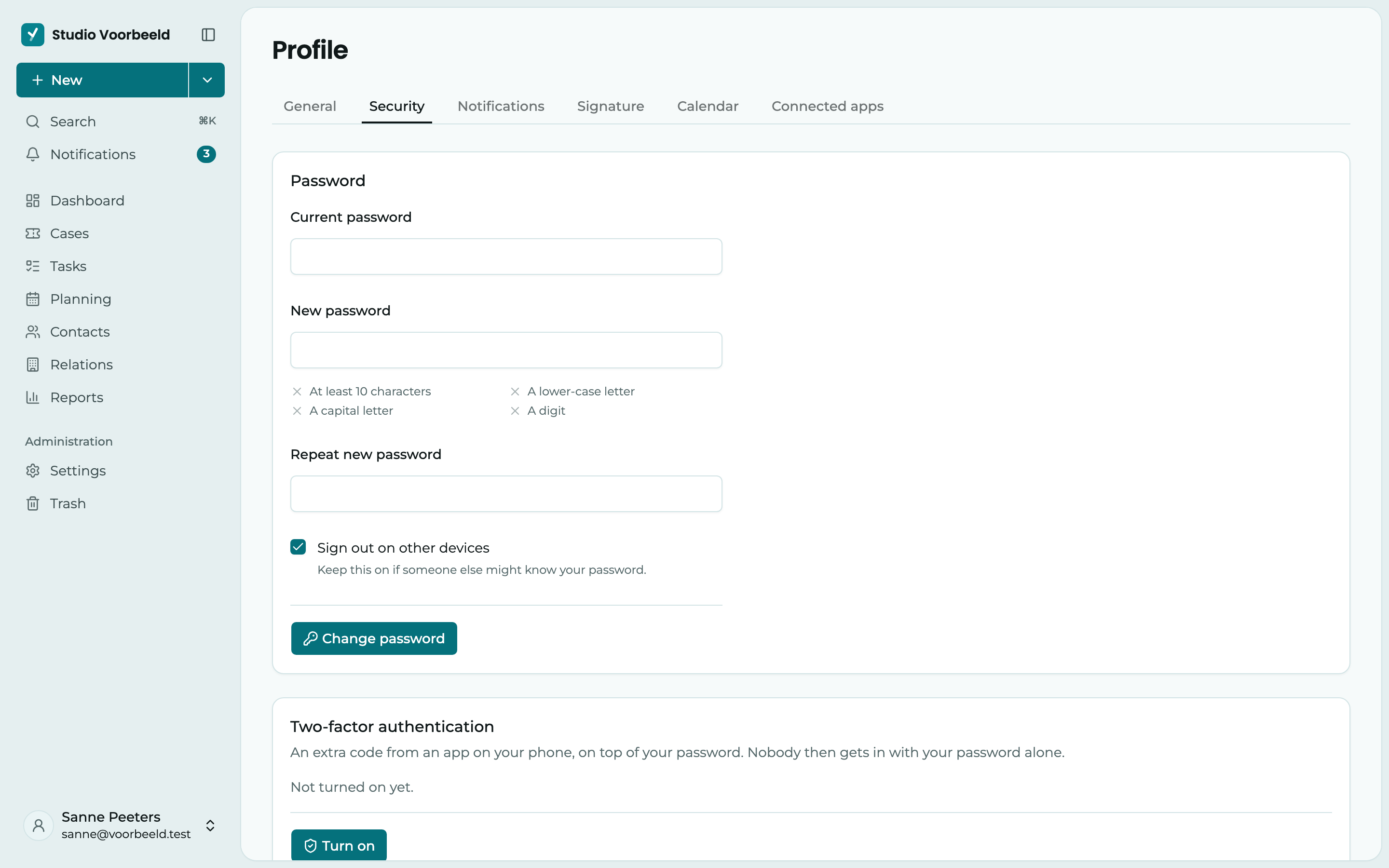
Change your password
- Fill in your Current password.
- Choose a New password and fill it in again under Repeat new password. It must have at least 10 characters, with a lowercase letter, an uppercase letter and a number. As you type, you see which rules are already met.
- Sign out on other devices is on by default. Leave it on if someone else might know your old password. You then stay signed in on this device only.
- Click Change password.
Lost your current password? Sign out and use Forgotten your password? on the sign-in page.
Signing in with Microsoft
If you sign in with your organisation's Microsoft account, you see Signing in with Microsoft here instead of a password. You then manage your password and the extra security at Microsoft.
Two-factor authentication
With two-factor authentication, Yusral asks for a code from an app on your phone after your password. Someone who guesses your password still can't get in. In Yusral, you find this under Two-factor authentication.
You need an authenticator app, such as Microsoft Authenticator, Google Authenticator or your iPhone's built-in Passwords app.
Start
Under Two-factor authentication, click Turn on. Fill in your Password and click Next.
Add your account to your app
Scan the QR code with your authenticator app. If scanning doesn't work, for example because the app is on the same phone, choose a new account with a key in your app and type or paste the Setup key shown under the code. The small button next to it copies it.
Keep your recovery codes
You get ten Recovery codes. You only see them now. Each code works once, for when you don't have your phone to hand. Keep them somewhere safe, for example in your password manager, and tick I have saved my recovery codes.
Confirm
Under Code from your app, fill in the six digits your app shows, and click Turn on. From now on, Yusral asks for that code when you sign in.
If your organisation has made two-factor authentication required, after signing in you first land on Set up two-factor authentication. Go through the same steps there. Only then can you carry on working. If you would rather do it later, click Sign out.
New recovery codes
Used up all your recovery codes, or lost them? Under Recovery codes, click Create new recovery codes and confirm with your password. You get ten new codes. The old ones then stop working.
Turn off
Click Turn off and confirm with your password. If your organisation has made two-factor authentication required, you have to set it up again straight away before you can carry on working.
New phone?
Move the codes to your new phone before you give the old one away. Most authenticator apps have a feature for this. If that doesn't work, sign in with a recovery code, turn off two-factor authentication and set it up again with your new phone.