 Yusral
The AI assistant
Summaries, suggested replies and tasks, automatic triage, and how to turn them on per feature.
The AI assistant is part of the Professional subscription and is off by default. An administrator turns it on.
The AI assistant takes over the dull part of a case: reading a long email thread, setting up a first reply, pulling a task out of an email. The suggestion always comes from the AI, the decision always from you. Nothing goes out to a customer unless someone clicks Send message.
You recognise everything that works with AI by the sparkles icon: the Suggest a reply and Draft a task buttons, the summary and the label on a suggested field.
Turn on the AI assistant
As long as the AI assistant is off, no text from your cases goes to an AI service. You then see no summaries and no Suggest a reply or Draft a task buttons, and new email gets no suggestion for type, priority or category.
To turn it on, an administrator goes to Settings > Organisation and, in the AI assistance card, turns on the Use AI switch. That is saved straight away.
Below it is a switch per feature: Suggest a reply, Summary, Draft a task and Sort incoming email. They are on as soon as you turn on AI. If you want reply suggestions, for example, but no AI reading every incoming email, turn off only Sort incoming email. A feature that is off doesn't show anywhere in your cases. See AI assistance.
On the Starter subscription, this card is not there.
A summary of the case
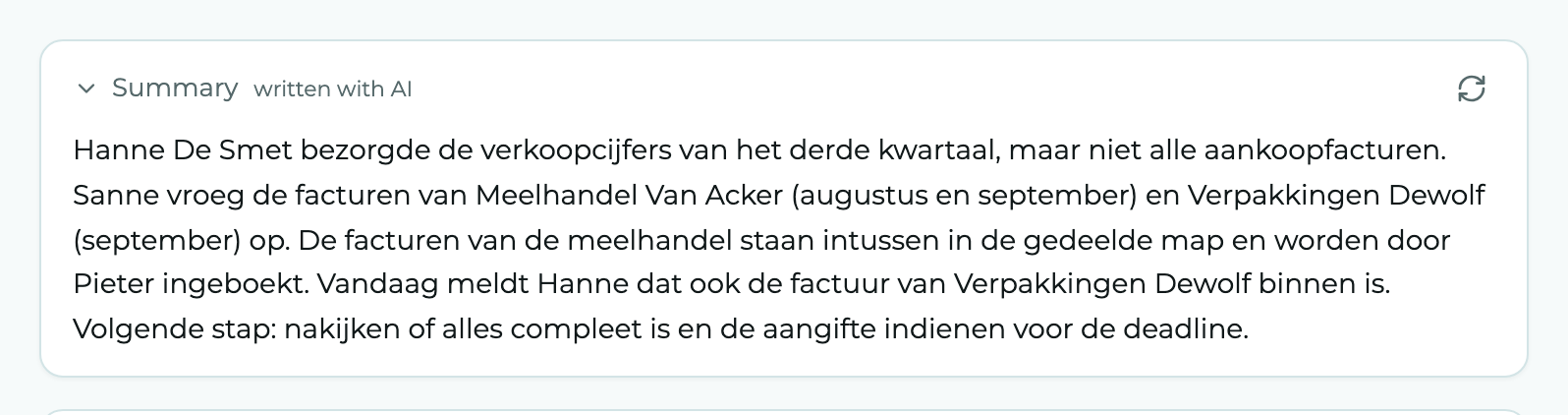
At the top of a case is a Summary: the messages and notes in a few sentences, with the label written with AI. Handy when you take over a case from a colleague. You also see the same summary in the panel that opens when you click a case in the overview.
A short case gets no summary: there, you read the conversation faster yourself.
Has a lot been added since? Click Write the summary again.
Have a reply suggested
In the text box, choose Message and click Suggest a reply. The assistant reads the case and writes a reply in the text box. Below it, it says Draft written with AI. Read it through before you send it.
Change it as you like and then send it yourself.
Suggest a reply only works when the text box is empty, so nothing gets overwritten. If there is already text, empty the text box first.
A draft from your own AI assistant
If you work with your own AI assistant connected to Yusral (see API and MCP), it can also prepare a reply for you. That draft appears above the text box as a message that has not been sent yet: Draft from your AI assistant, with the recipients, when it was written and the first lines.
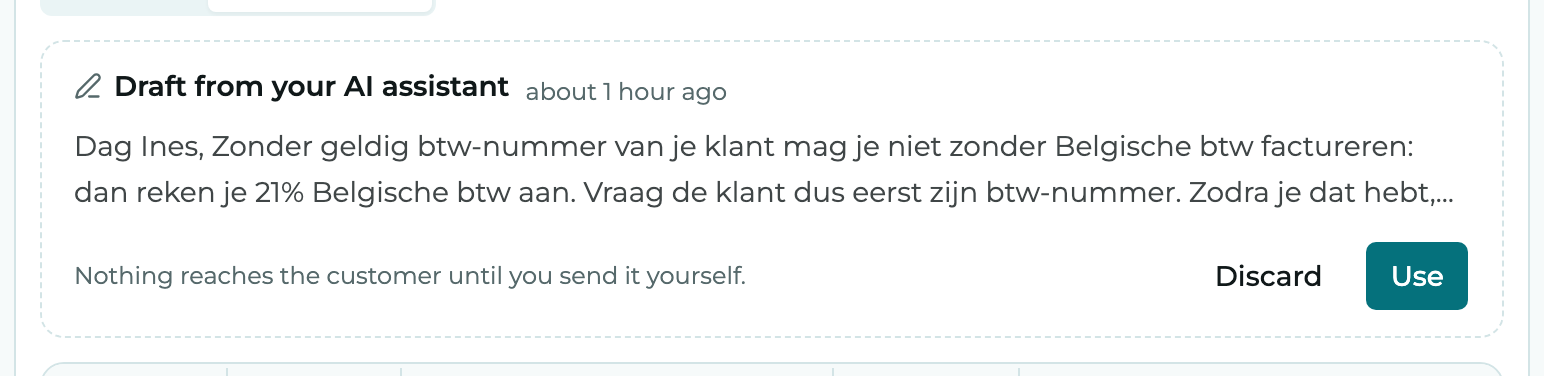
- Use puts the draft in the text box, with the recipients. Read it through and send it yourself.
- Discard throws the draft away.
Only you see the drafts your own assistant prepares for you. If it writes a second draft for the same case, that replaces the first one.
A task from a message
If a customer asks for something that takes work, such as can you come by next week?, click Draft a task on the email. The assistant fills in a task with a description and a deadline, with the note Suggested by AI from the message. Check the task and click Add.
This only works on emails from the customer, not on what you sent yourself.
Automatic triage of new email
With every new email, the assistant suggests the Type, the Priority and the Category. Such a field gets the AI label in the details, with the explanation Suggested by AI on arrival. Change the field if it is wrong.
If it is wrong, simply change the field. The label disappears as soon as someone changes the field.
Limits
Your organisation gets 2,000 AI actions per user per month and 200 per day. That is one shared pool for the whole team: someone who answers a lot of email can use more of it than a colleague who rarely does.
An action is one email sorted on arrival, one summary, one draft or one suggested task. With normal use, you stay well below the limit.
If the daily limit is reached anyway, you see Today's AI limit has been reached. Tomorrow it works again. If the monthly limit is used up, it works again from the next month, or after upgrading the subscription. Yusral itself keeps working, only the AI features wait.
What happens to your data
To make a summary or a draft, Yusral sends the text of the case to an AI service. That service processes the text in the EU and doesn't store it there. Which services they are is listed on the Sub-processors page.