 Yusral
Tour
What is where, and how to quickly find what you are looking for.
After signing in, you land on the dashboard. On the left is the sidebar with everything you need everywhere: the menu, New, Search, Notifications and, at the bottom, your user menu. To the right of it is your work.
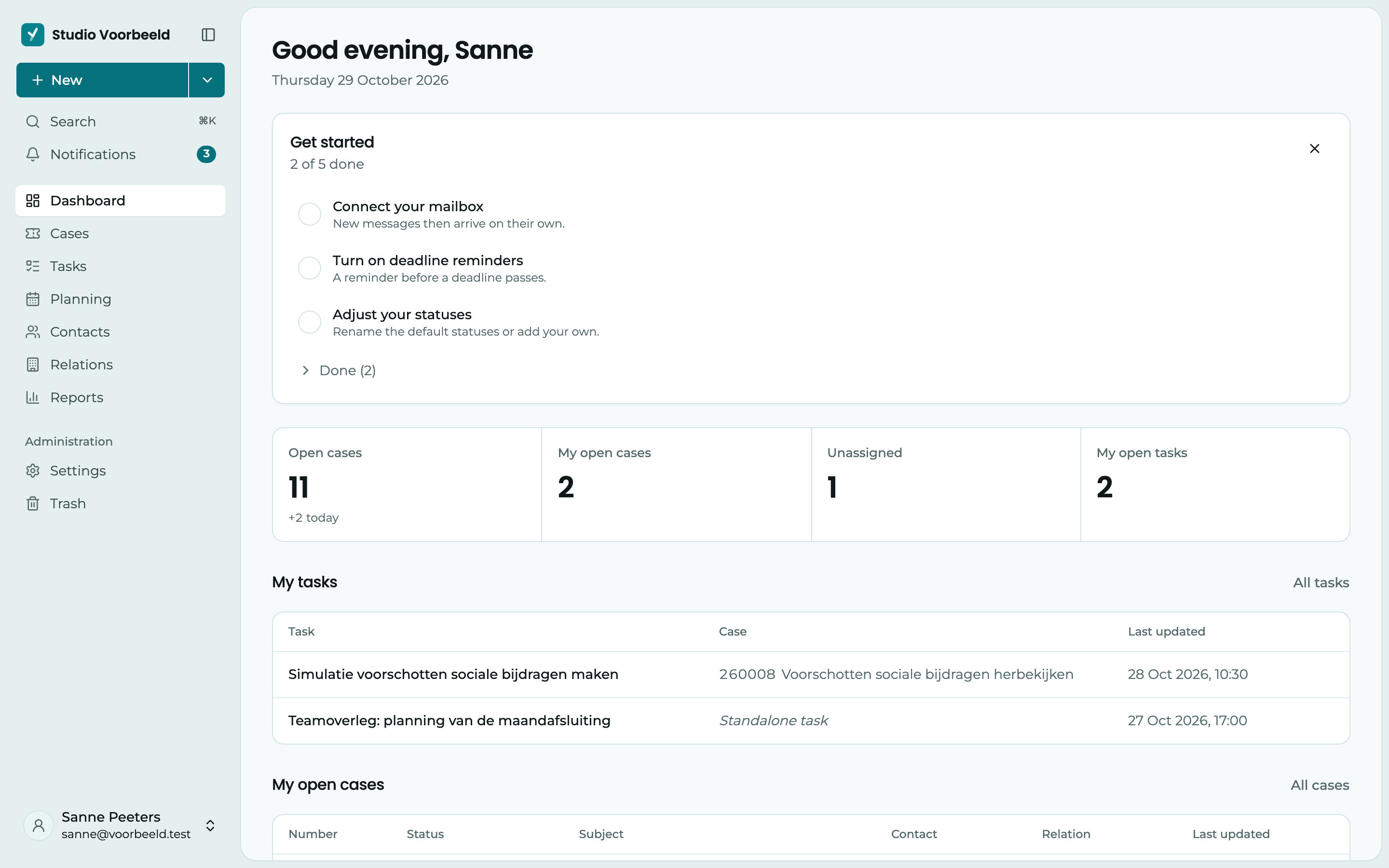
At the top of the sidebar are your organisation's logo and name. Click them to go back to the dashboard. If you work for more than one organisation, that click opens the list of your organisations instead: choose one to switch, or choose Go to the dashboard. The icon next to them collapses the sidebar into a narrow bar with only icons. An administrator sets the logo under Organisation.
1 The menu. This is where you switch between parts of your work:
- Dashboard: your open cases, your tasks and what nobody has picked up yet.
- Cases: all of your team's customer requests. Click a row for a quick look at the side, without leaving the list. Open case takes you to the full case.
- Tasks: what needs to be done, with or without a case.
- Planning: your team's calendars side by side.
- Contacts and Relations: the people and the customers behind your cases.
- Reports: figures about your cases, such as how many come in, how long they stay open and how quickly you reply.
- Under Administration, you find Settings and the Trash.
Which parts you see depends on your role. Planning and Reports are part of the Professional subscription. If Pro appears next to them, they are not in your subscription.
2 New. Opens a new case straight away. Through the arrow next to it, you can also choose Contact, Relation or Invite member. You create a contact or relation in a panel at the side, without leaving the page.
3 Search. Searches cases, tasks, relations, contacts, messages and notes at once. See Search below.
4 Notifications. Shows what has happened in your cases and tasks. The number next to it is the number of unread notifications. See Notifications.
5 User menu. Click your name. Here you find your Profile, Notifications (your notification settings), Give feedback (to send us a question, an idea or a bug directly), Legal (the terms and the privacy statement) and Sign out.
Search
Click Search or press ⌘ K (Mac) or Ctrl K (Windows). Type at least three characters.
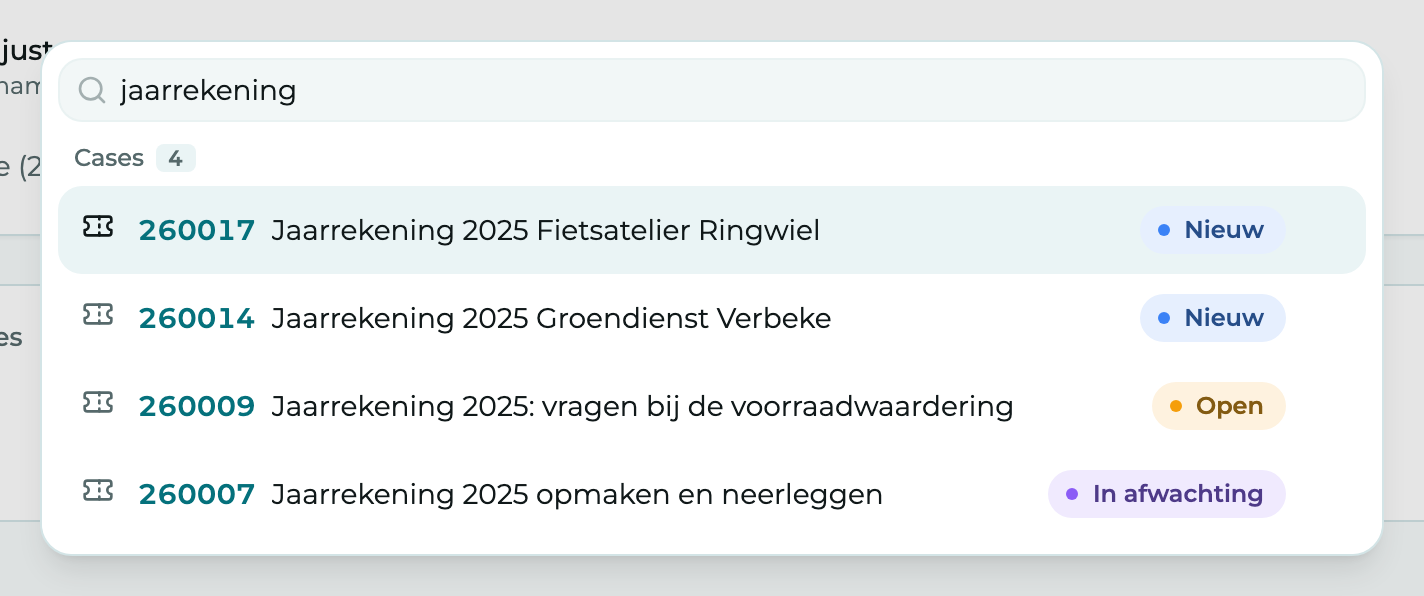
The results are grouped by kind. If there are many, click Show all … below a group. Back to all results takes you back to the overview. As long as you have not typed anything yet, you see what you opened recently under Recently visited.
Notifications
You get a notification about work assigned to you: a new reply from a customer, a colleague mentioning you in a note, a deadline coming up.
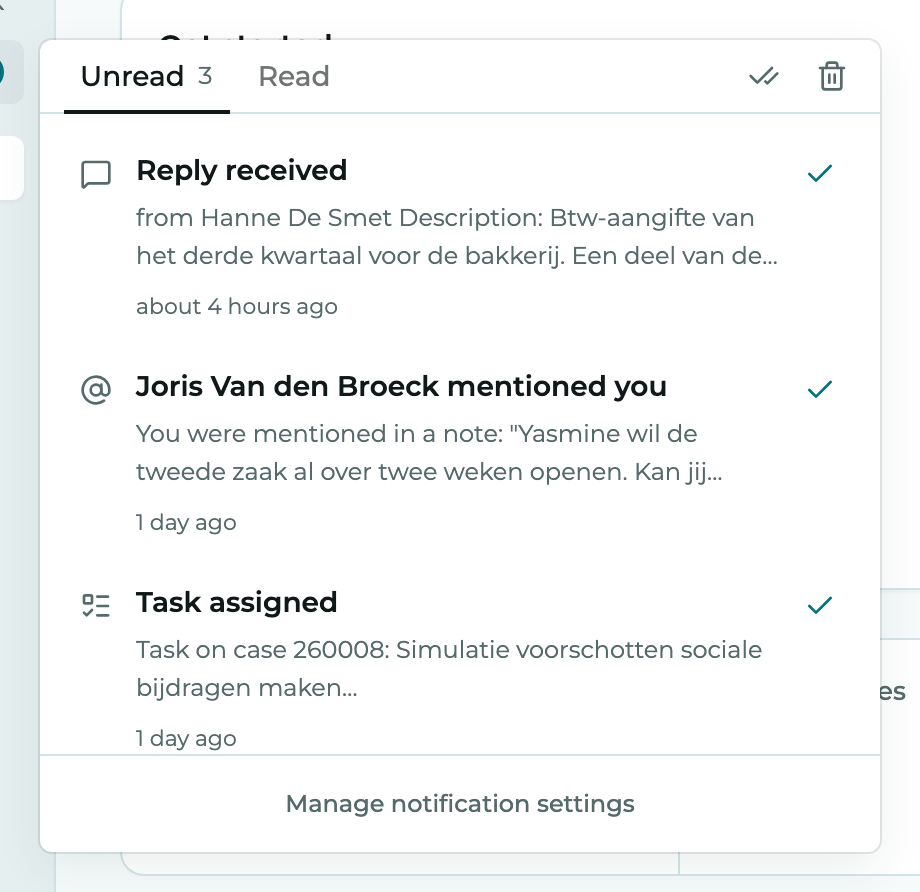
- Click a notification to open the case or the task.
- The tick next to a notification marks it as read. It then moves to Read.
- At the top are Mark everything as read and Delete all notifications. If you delete everything by accident, you can bring it back through the message that appears at the bottom.
- Through Manage notification settings, you choose for each kind of notification whether you get it in the browser, by email or as a push notification. See Notifications.
The first time you open Yusral on a device, it asks Push notifications on this device? Choose Turn on to get notifications even when Yusral is not open, or Not now. You can always turn them on later under Profile > Notifications.
Push notifications on your iPhone
On an iPhone, you first have to add Yusral to your home screen (through the share menu in Safari, Add to Home Screen) and open it from there. Only then can your phone show push notifications.
Keyboard shortcuts
| Key | Where | What |
|---|---|---|
| ⌘ K or Ctrl K | Everywhere | Search |
| R | In a case | Write a reply to the customer |
| N | In a case | Write an internal note |
| N | In Tasks | A new task |
| L and B | In Tasks | Switch between list and board |
| / | In Tasks | Go to the search field |
The letters don't work while you are typing in a text field. R and N in a case also don't work while a window or menu is open.
On your phone
On a tablet or a narrow screen, the sidebar disappears. At the top, a bar appears with a menu icon, New, search, the bell for your notifications and your user menu. On a phone, there is also a bar at the bottom with Dashboard, Cases, Tasks, Planning, Contacts and Relations.
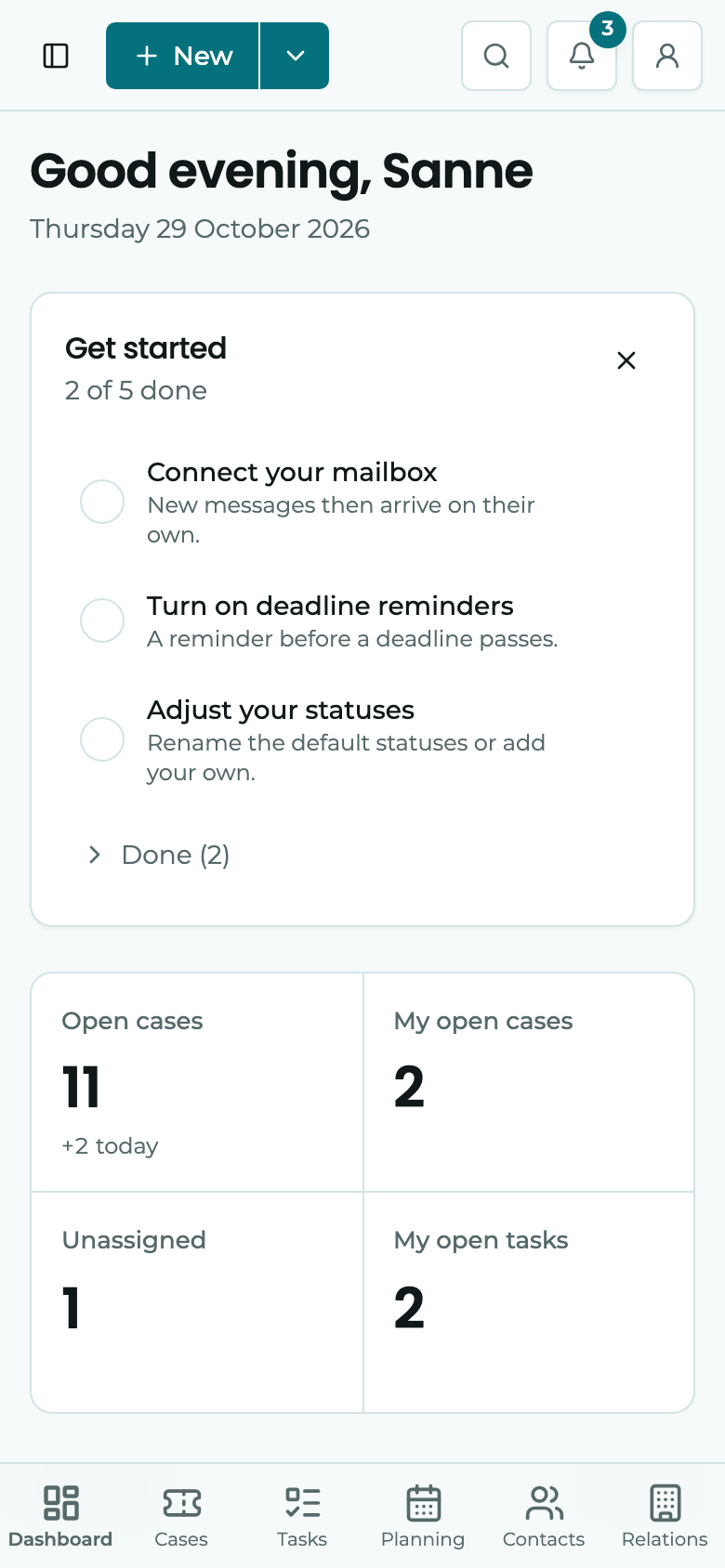
What doesn't fit in the bar, such as Reports, Settings and the Trash, you find through the menu icon at the top left. You also switch organisation there, with the name at the top. On a narrow screen the user menu, with Give feedback in it, sits at the top right.
The Get started checklist
New organisations see a Get started card on the dashboard, with the five steps that make the most difference: connect your mailbox, invite a colleague, create your first case, turn on deadline reminders and adjust your statuses. Finished steps move under Done. Once everything is done, the card disappears by itself.
The card is only there for people who are allowed to change the organisation's settings. Your colleagues don't see it.
Did you hide the card with the cross (Hide this overview)? Then you bring it back through Show Get started in the user menu.