 Yusral
Create a case
Create a case yourself, or have cases created automatically from incoming email.
You don't create most cases yourself. If your organisation has connected a mailbox, every new email from a customer becomes a case by itself. If a customer phones or drops by, you create the case yourself.
Create a case yourself
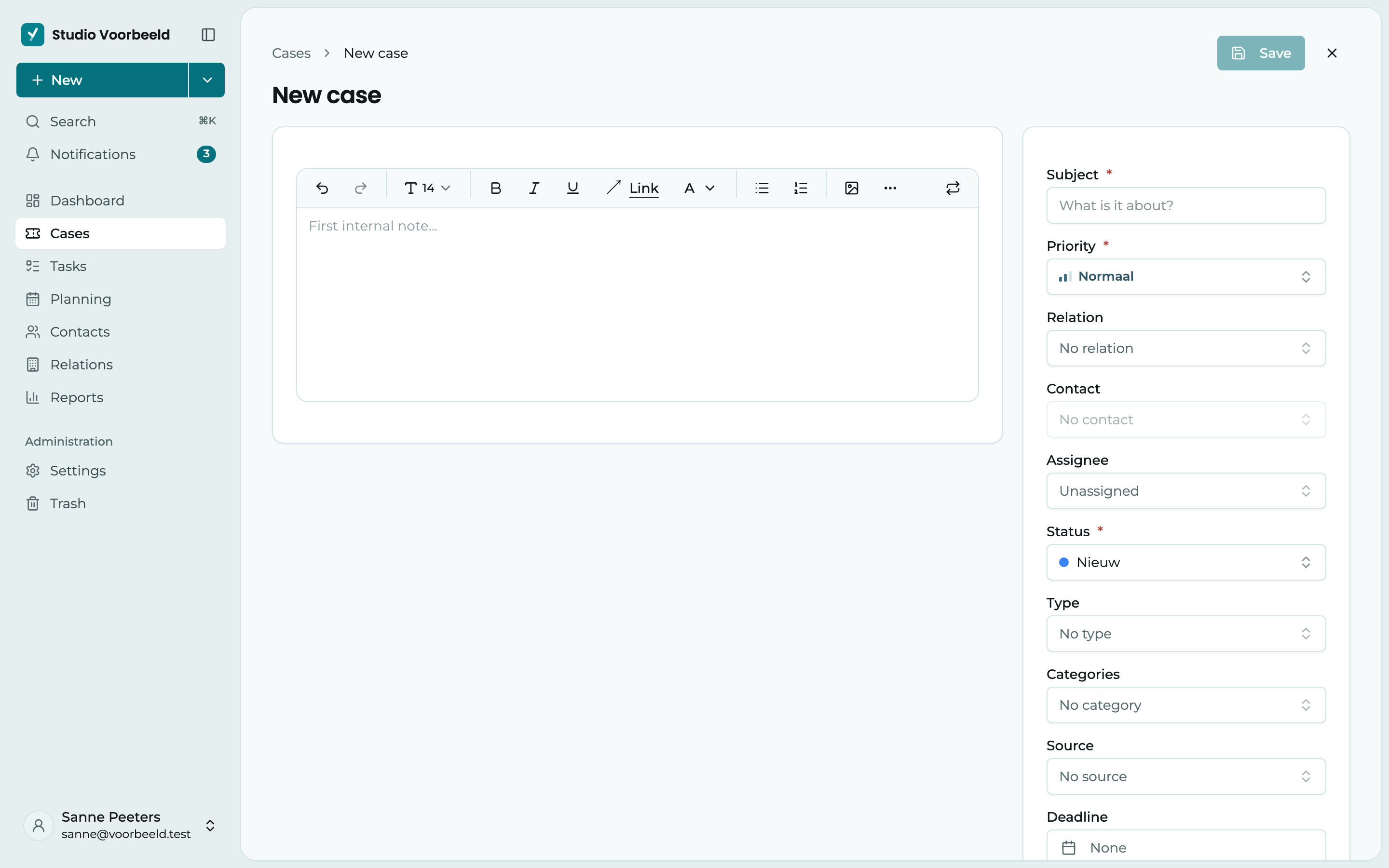
Click New at the top, or New case in the cases overview. On a contact's page, you find the same button as Create case, in the Cases tab.
Describe the question
Under Subject, fill in what it is about, short and recognisable. Your colleagues see this in the list. The subject is the only required field.
Link the customer
Choose the Relation (the company or private individual) and then the Contact. You pick a contact from that relation's people, so choose the relation first. That way, you find the case again later under that customer.
Who picks it up?
Choose an Assignee, and if you like a Priority, Status, Type, Categories, Source and Deadline. The status and priority are already set to your organisation's default. If you don't know yet who will pick it up, leave the assignee empty. The case then appears under Unassigned.
Note down what you already know
What you type on the left in First internal note… is saved as an internal note. Handy for what the customer told you on the phone. Your customer never sees this note.
Save
Click Save. The case gets a number and opens.
You can only send an email after saving
When you create a case, you only write a note. If you want to email the customer, save the case first and then choose Message above the text box. See Handle a case.
Automatically from email
If a mailbox is connected and Create cases automatically is on, this happens with every new email:
- An email about a new question becomes a new case.
- A reply to an email that Yusral sent goes to the existing case. Yusral recognises this from the email itself and from the case number in brackets in the subject, such as
[26090042]. - If the sender is already a contact, Yusral links the case to that contact and to their primary relation.
- If the sender's email domain is linked to a relation, the case goes to that relation, with that relation's default assignee.
At the bottom of the timeline of such a case, you see Came in by email, with the sender's address.
An unknown sender doesn't become a contact by itself. If you want to keep them, create a contact and link it to the case. See Relations and contacts.
An administrator sets this up under Connect email.
Leave the number in the subject
Ask customers to reply to your email instead of starting a new one. If the case number stays in the subject, the reply always goes to the right case.
The case number
Every case gets a unique number. By default, that is the last two digits of the year, the month and a four-digit sequence number: 26090042 is the 42nd case of September 2026. Your administrator can choose a different format under Settings > Service, see Set up service.