 Yusral
Organisation
Name and logo, language and what cases are called, security, AI, email, reminders and the data processing agreement.
Go to Settings > Organisation. These settings apply to everyone in your organisation. You need the Owner or Admin role for them.
Each subject has its own block: Organisation details, Language and naming, Access and security, AI assistance, Email, Notifications and Data processing agreement. A switch saves as soon as you flip it. For fields where you type something, Save only appears once something has changed.
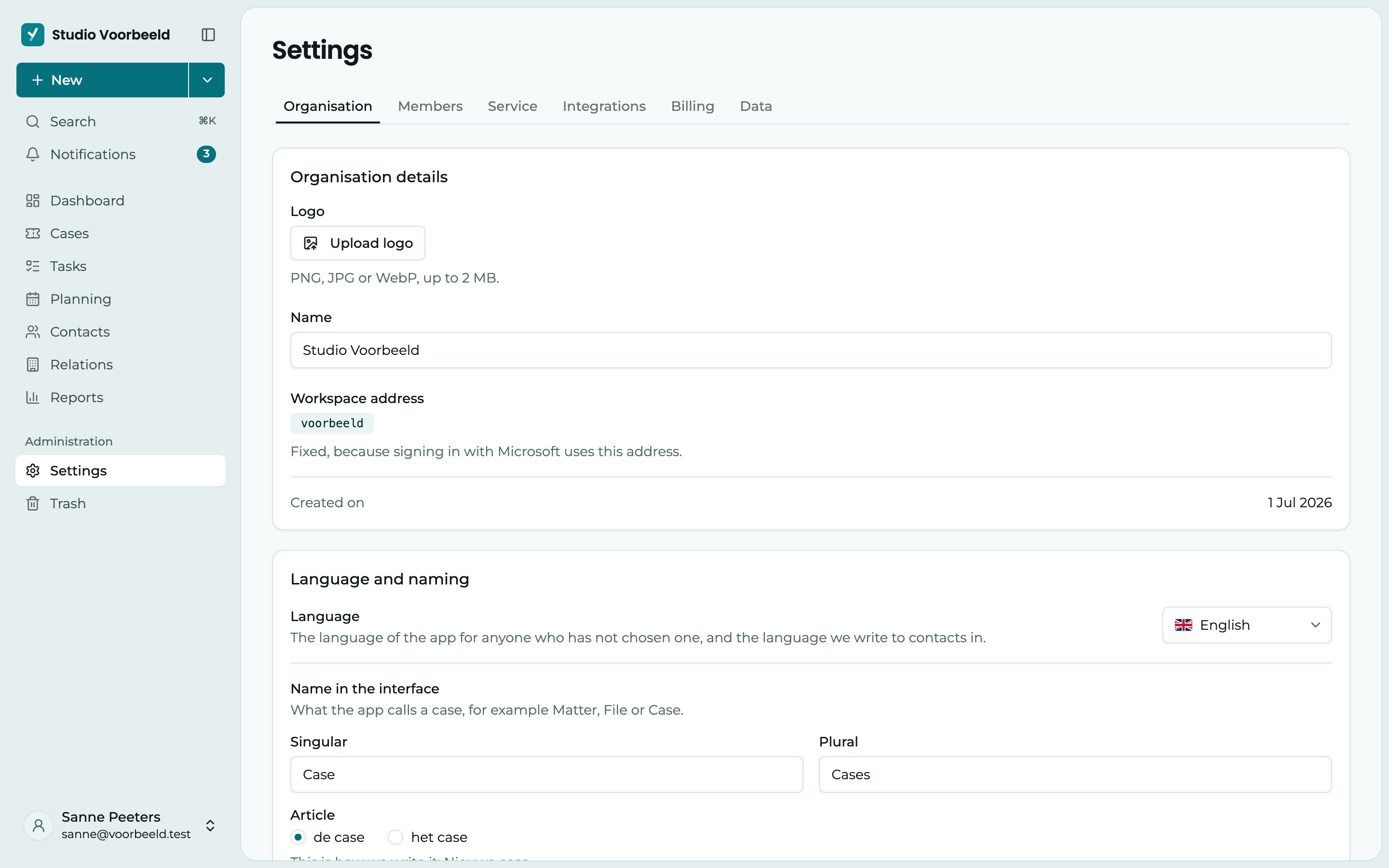
Name and logo
In the Organisation details block:
- Logo: click Upload logo and choose a PNG, JPG or WebP of up to 2 MB. The logo is saved straight away. You change it with Replace and Remove.
- Name: type the new name and click Save. The new name shows everywhere straight away, including on your next invoices.
- Workspace address: this is fixed, because signing in with Microsoft uses this address.
Your logo appears at the top left of the sidebar and where you choose between your organisations. It also appears at the top of a case you save as a PDF. When you choose a layout for an email signature, your organisation's name and logo are already in it.
Language
In the Language and naming block, under Language, choose your organisation's default language: Nederlands, English, Français or Türkçe. Your choice is saved straight away.
Everyone who doesn't choose a language themselves sees this language. Yusral also uses it to write to your contacts, for example in the confirmation email. Each user can choose a different language for themselves in their profile, see Profile and language.
What do you call cases?
Under Naming, choose the word your team uses: Case, Ticket, File, Request, Issue or Job. Your choice is saved straight away.
Each word exists in every language, with the right grammar. If you choose File, a colleague who works in Dutch sees Dossier, in French Dossier and in Turkish Dosya. Below the choice, you see an example: This is how we write it: …. Your word appears everywhere: in the menu, on the buttons and in the notifications.
Access and security
- Require two-factor authentication: anyone who signs in with a password and does not have two-factor authentication yet lands straight on Profile > Security after signing in. Only once it is set up can they carry on working. Turn it on for yourself first, see Password and two-factor authentication. People who sign in through SSO are not covered by this: there, Microsoft handles the extra security.
- Sign in with Microsoft (SSO): here you see whether SSO is active. With Set up, or Manage if it is already set up, you open the settings in a panel at the side. See Signing in with Microsoft (SSO).
- Require SSO: appears as soon as your SSO domain is verified. See Require SSO.
Who can see which cases is not set here but with roles. See Members and roles.
AI assistance
AI is part of the Professional subscription. On Starter, you don't see this block.
Use AI turns AI on or off for your whole organisation. The text is processed by Mistral in the EU and not stored there.
Below it, you choose per feature whether you use it:
- Suggest a reply: writes a reply in the composer for you to check and send.
- Summary: summarises long conversations at the top of the case.
- Draft a task: turns an incoming message into a task with a due date, which you check before adding it.
- Sort incoming email: suggests a type, priority and category for incoming email.
When you turn on Use AI, all four features are on straight away. Turn one off, and that button or suggestion disappears for everyone. When Use AI is off, everything is off, whatever the switches below it say.
AI is off by default, including in a new organisation. Nothing from your cases goes to the AI model until an owner or admin turns on Use AI. See also AI assistant.
- Send with the conversation history by default: whether a reply to a customer puts the earlier emails below the message by default. You can still change this per message.
- Enable email signatures: lets colleagues put their own signature below their emails, see Signature.
- Organisation signature: if it is on, everyone sends email with the same signature. It then replaces the personal signatures. If it is off, each member uses their own.
If you turn on the organisation signature, you write it in the editor below. With Choose a layout, you start from a ready-made design. You see a preview of an email with the signature below it straight away. Click Save.
Deadline reminders
The Notifications block has Deadline reminders. Assignees then get a reminder around the deadline of their cases and tasks. This is on by default.
- When: tick when the reminder comes: A week before, Three days before, A day before, Four hours before, On the deadline, A day overdue or A week overdue. Each ticked option sends one reminder. By default, these are a day before, on the deadline and a day overdue.
- Where: In the app, by Email and as a Push notification. Choose at least one channel.
Click Save. Everyone can choose their own setting in their profile, see Notifications.
Data processing agreement
Because Yusral stores your customers' personal data, your organisation enters into a data processing agreement with us. Everyone with access to the settings sees whether it has been accepted. Only the owner can accept it: read it with Read the agreement and click Accept.
When a new version comes out, you see There is a new version and the owner accepts it again.
Delete your organisation
The owner does this under Settings > Data. See Your data.