 Yusral
Notifications
Choose what you get notified about, and whether that is in the browser, by email or as a push notification.
Go to Profile > Notifications. You also get there through Notifications in the user menu, or through Manage notification settings at the bottom of the notifications panel.
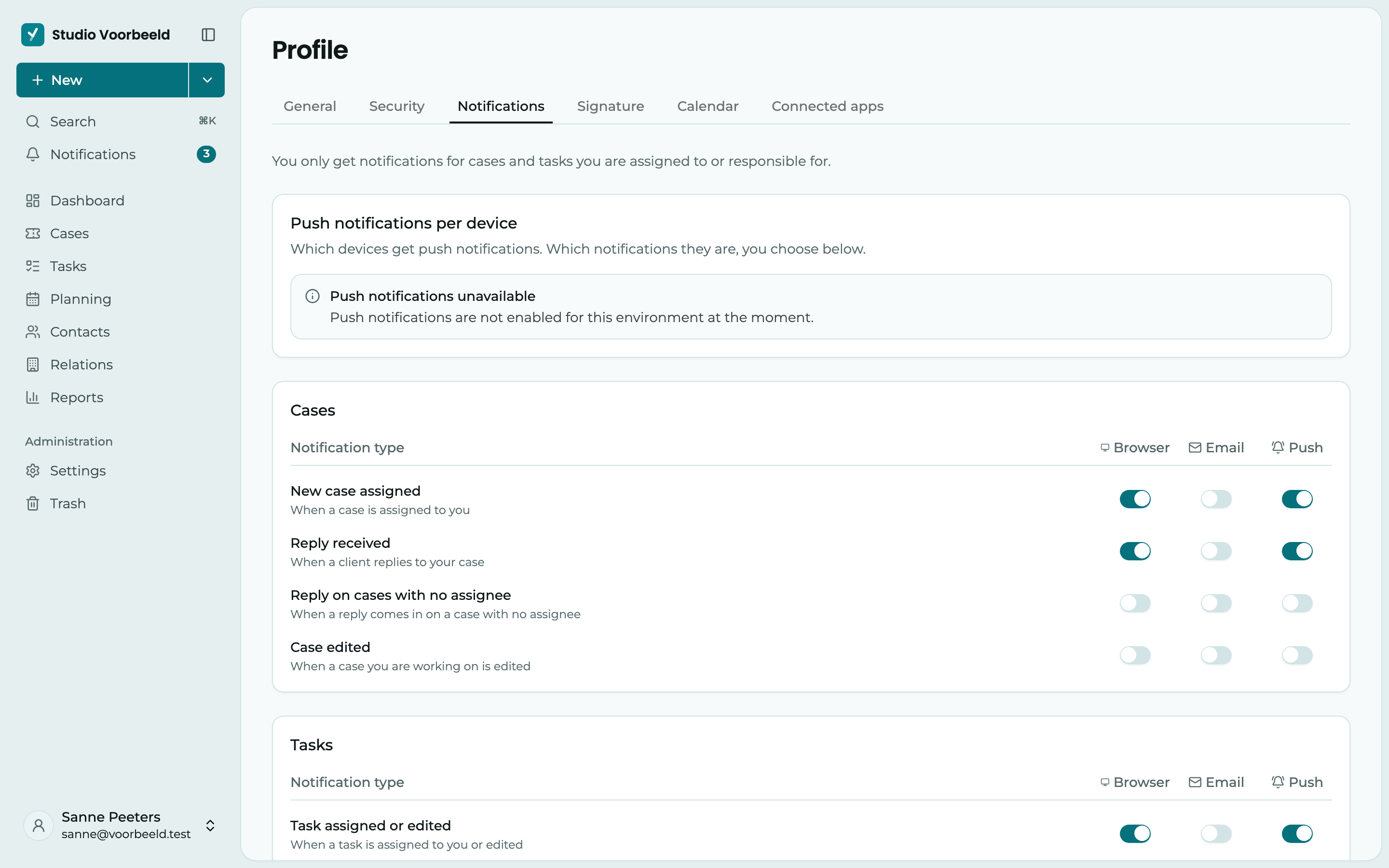
You only get notifications about cases and tasks assigned to you, and about things you are mentioned in. So what your colleagues do in their own cases doesn't disturb you.
Per kind, per channel
The notifications are in four groups: Cases, Tasks, Deadlines and Messages and notes. For each Notification type, turn on where you want to see it:
- Browser: in the notifications panel in Yusral.
- Email: in your mailbox.
- Push: on your phone or computer, even when Yusral is not open.
| Notification type | When |
|---|---|
| New case assigned | Someone assigns a case to you |
| Reply received | The customer replies on a case of yours |
| Reply on cases with no assignee | A reply comes in on a case with no assignee |
| Case edited | Someone changes a case you are working on |
| Task assigned or edited | You get a task, or someone changes your task |
| Deadline reminder | Before and after a deadline on a case or task assigned to you |
| Message sent | An internal message is sent |
| Mentioned | Someone mentions you with @ in a message or note |
| Note added | A colleague writes a note in a case of yours |
Click Save when you are done. Cancel puts everything back the way it was.
Deadline reminders
In new organisations, deadline reminders are on by default. You get them at the moments your administrator chose for the organisation (Follow the organisation's setting). Choose Own setting to decide yourself when you are reminded, for example a day before and on the deadline itself. If you don't tick anything, the organisation's moments apply.
Push notifications
You turn on push notifications per device. At the top, under Push notifications per device, click Turn on push notifications for this device. Your browser then asks for permission once. Or click Turn on when Yusral asks you as you open it.
Under Registered devices, you see which devices they are on for, with This device next to the one you are working on now. Turn a device off with the switch, or remove it from your account with the bin icon.
You choose which notifications come as push notifications in the Push column next to the kinds of notifications.
If your browser blocks notifications, Yusral says so here, with an explanation of how to allow them again.
On an iPhone or iPad
First add Yusral to your home screen: open it in Safari, tap the share icon and choose Add to Home Screen. Then open it from your home screen and turn on push notifications.