 Yusral
Tasks
Share out and follow up work, in a list or on a board.
A task is something that needs to be done, by someone, ideally by a certain day. It can belong to a case (draw up a quote for this customer) or stand on its own (prepare the quarterly return).
Click Tasks in the menu.
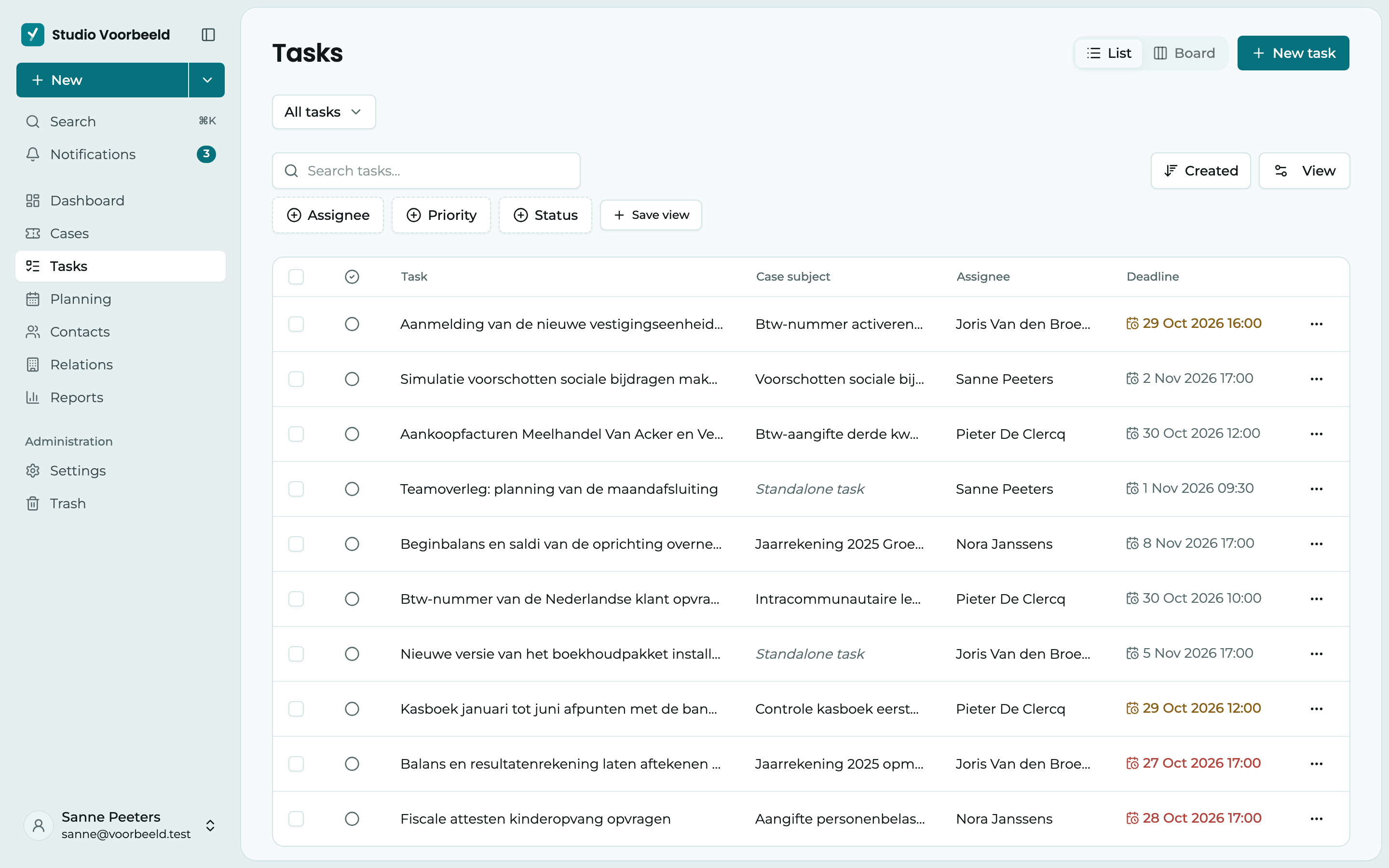
By default, you see whether the task is ticked off, the task itself, the subject of the case, the assignee and the deadline. You turn on more columns, such as Priority and Status, under View > Columns. Then click Save.
Click a task that belongs to a case, and the case opens. A standalone task opens for editing.
Create a task
Click New task or press N.
- Case: choose the case it belongs to, or No case, standalone task.
- Description: what needs to be done? Short and concrete.
- Assignee: who does it. That person gets a notification.
- Status, Priority, Deadline and Duration: all optional.
Click Add.
You can also create tasks for a case from the case itself, in the Tasks tab.
The duration of a task
Yusral uses the Duration to schedule the task in Planning. Just type it in minutes or hours, such as 45, 1,5 u, 1h30 or 1:30. Or choose a set duration from the menu next to it.
A duration is between 5 minutes and 24 hours. If you leave the field empty, your organisation's Default duration applies.
List or board
At the top, you choose between List and Board.
- The list is handy for quickly seeing what is overdue or due today.
- The board shows the tasks as cards in columns. Choose the columns with Status, Assignee or Priority. Drag a card to another column to move it, or within a column to change the order. The new order is kept. With the three dots on a card, you can also Edit the task, give it another status with Move to, or Delete it.
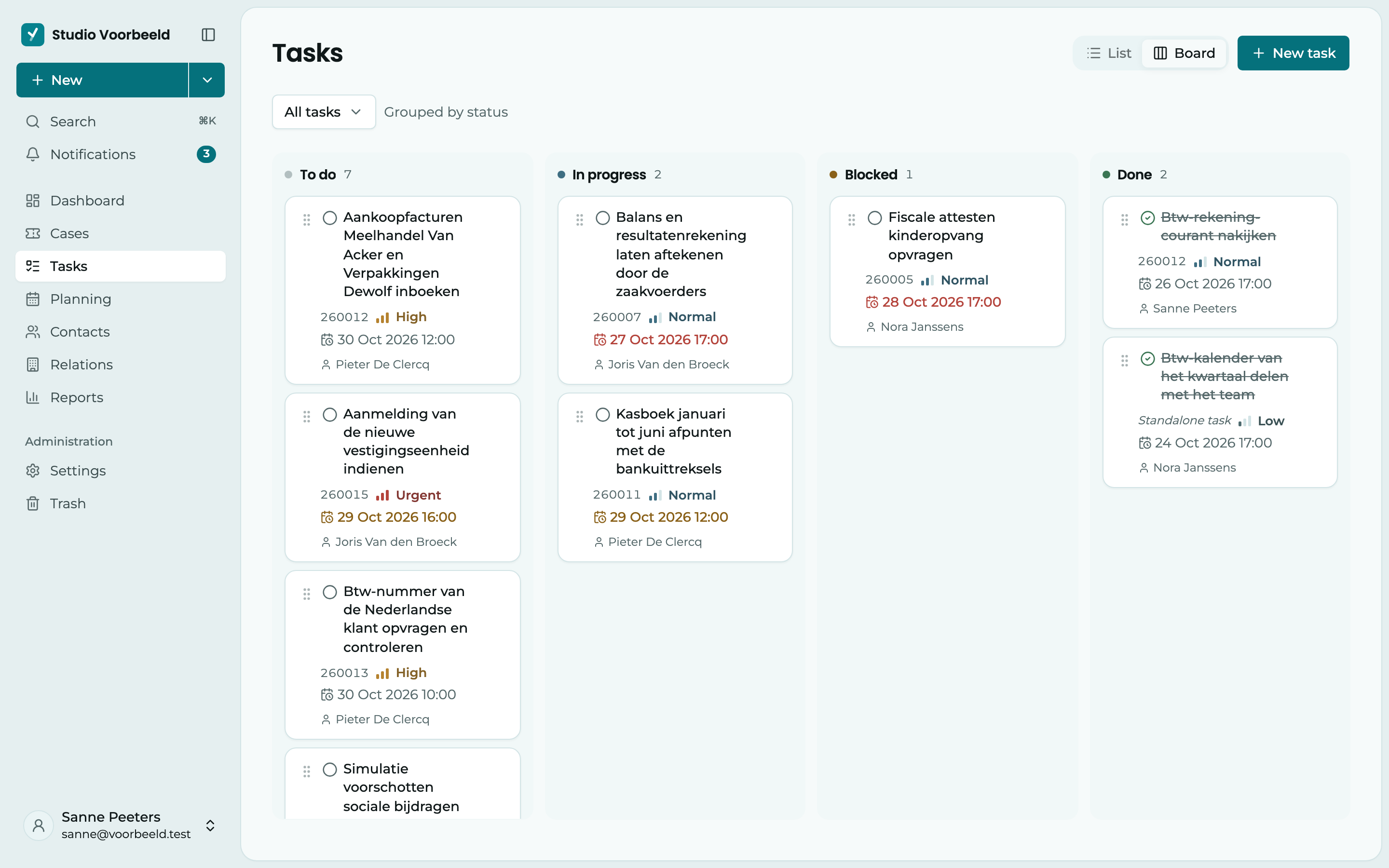
A task always has one of these statuses: To do, In progress, On hold or Done. Finished tasks disappear from view. Turn on Show completed tasks to see them again.
Filter
At the top of the page, you choose which tasks you see, in the list and on the board:
- Overdue, Today, This week or My tasks. The number next to each one says how many tasks it holds.
- All, only the tasks With a case, or only the standalone tasks with Standalone.
On a smaller screen, these choices sit together under the Filters button, where you also see what is on. In the list, you can also filter by status and priority, and save your own quick filters with Save view, as in the cases overview.
If you see Nothing matches these filters., there are tasks, just not with these filters. The filters stay in place, so you can turn one off. Or click Clear filters.
Several tasks at once
Tick tasks and choose what to do with them: Move to another status, Complete, Reopen or Delete. You can't delete with the Member or Viewer role.
Deleting is permanent
A deleted task doesn't go to the trash. It is gone straight away. Rather set a task that is no longer needed to Done.
Keyboard shortcuts
Press ? or click Keyboard shortcuts for the overview. They work everywhere on the page, except while you are typing.
| Key | What it does |
|---|---|
| N | New task |
| L | List view |
| B | Board view |
| / | Search in tasks |
| ? | Keyboard shortcuts |
| Esc | Clear selection |
Schedule tasks in your calendar
If your Outlook calendar is connected, a task in a case's Tasks tab has the Schedule in the Outlook calendar button. The task then goes into your calendar as an event, so you keep time free for it. See Planning.
Who sees which tasks?
By default, everyone sees all the team's tasks. If your role lacks the Also view colleagues' cases permission, you only see your own work: the tasks assigned to you and the standalone tasks you created yourself. My tasks is then not there, because everything you see is already yours. If you don't see your colleagues' tasks, ask your administrator. See Members and roles.