 Yusral
Relations and contacts
The difference between a relation and a contact, how you create them, and how they bring email to the right customer automatically.
Yusral keeps track of two things about your customers:
- A relation is the customer itself: a company, or a private individual.
- A contact is a person you talk to. A contact belongs to one or more relations.
So at an accounting firm, Bakkerij Janssens bv is the relation, and Els Janssens, zaakvoerder is a contact.
You find them in the menu under Contacts and Relations.
Create a relation
Click Relations in the menu and then New relation. Or choose Relation under the arrow next to New at the top. A panel slides open on the right, so you stay where you were.
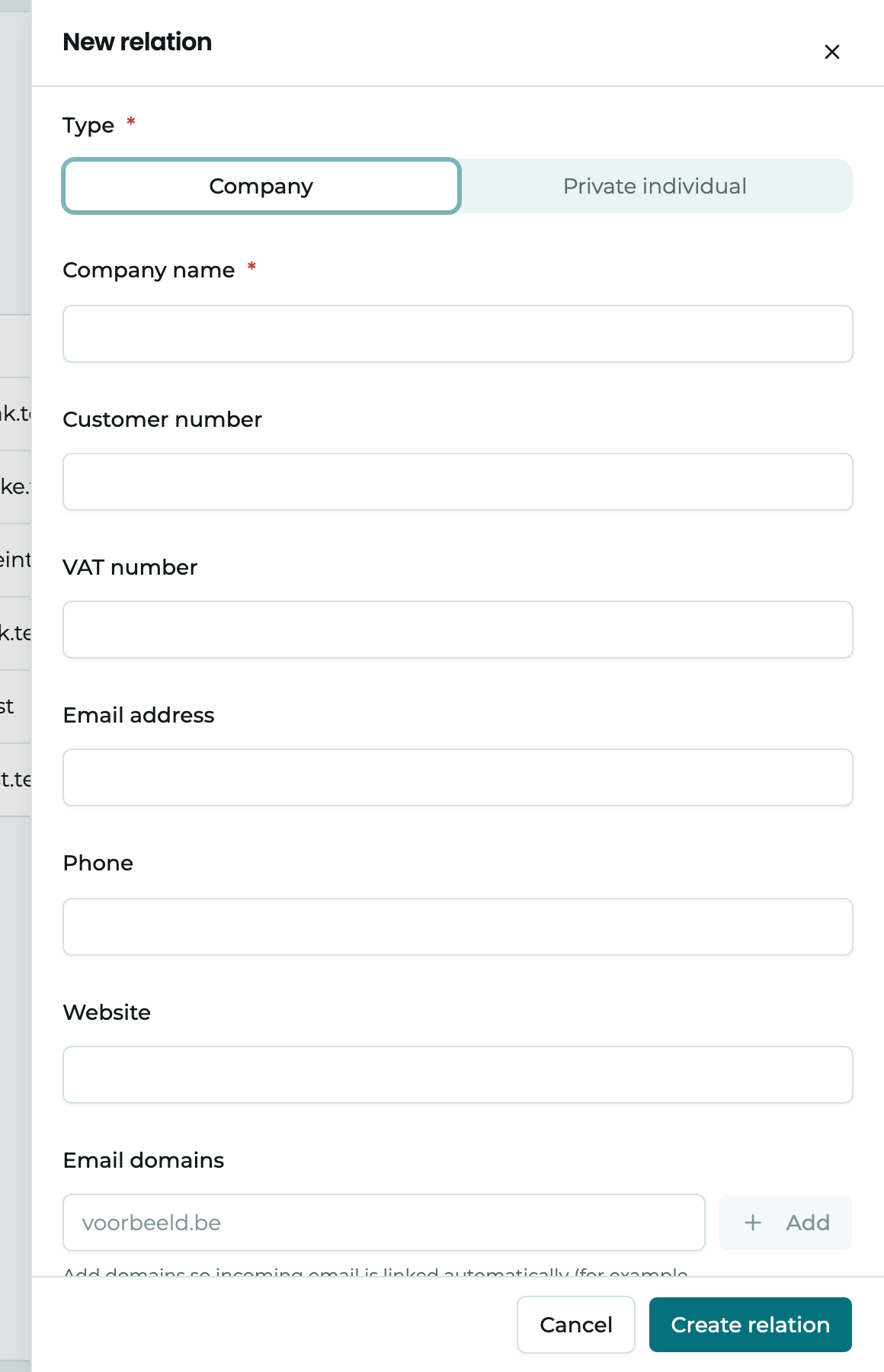
First choose the Type:
- Company: an organisation. Fill in the Company name, and if you like the VAT number, a Customer number from your accounts and the Email domains.
- Private individual: a person. Fill in the Name, and if you like a Customer number.
Then fill in an email address, phone number, website and address if you have them, and if you like a Default assignee. Click Create relation. To see the new relation straight away, click Open in the message that appears.
If you close the panel when you have already filled something in, Yusral first asks whether you want to throw those changes away.
Does the relation already exist?
A relation has a unique name. If you type a name that already exists, you see A relation with this name already exists., with a link to that relation. If it is in the trash, Yusral suggests you Restore it. If you want a new one anyway, click Create a new one anyway.
Email to the right customer automatically
Two fields on a relation save you a lot of sorting:
- Email domains: fill in the domain the customer emails from, such as
bakkerijjanssens.be. From then on, every email from that domain goes to this relation, including from people who are not a contact yet. This field is only there for a company. - Default assignee: the colleague who looks after this customer. New cases that reach this relation through the email domain are assigned to them straight away.
No free email domains
Don't fill in a domain that a lot of people share, such as gmail.com or telenet.be. Then every email from that domain goes to this one customer.
Create a contact
Click Contacts in the menu and then New contact. Or choose Contact under the arrow next to New. Here too, a panel opens on the right.
- First name and Last name are required. You can also fill in the Email address, Phone (direct), Phone (mobile) and the Job title.
- Relations: choose which customer the person belongs to. If someone works for more than one customer, add all the relations.
Click Create contact.
The first relation you pick becomes the contact's primary relation. If you remove it later, the next relation in the list takes over.
If you are working from a relation, click New contact in that relation's Contacts tab. The relation is then already filled in and becomes the contact's primary relation.
When a contact emails, Yusral links the case to that contact and to their primary relation. You recognise it by the Primary label on the relation.
Find relations and contacts
The lists work like the cases overview: you search, filter, choose your columns under View and save your own quick filters.
- In Search relations…, you search by name, email address, city or customer number.
- In Search contacts…, you search by name, email address or job title, but also by the name of the relation. Type Bakkerij Janssens and you see everyone who works there. The Relation column shows who each contact belongs to.
What you see on a customer's page
A relation or contact is laid out like a case: on the left what belongs to it, on the right the details.
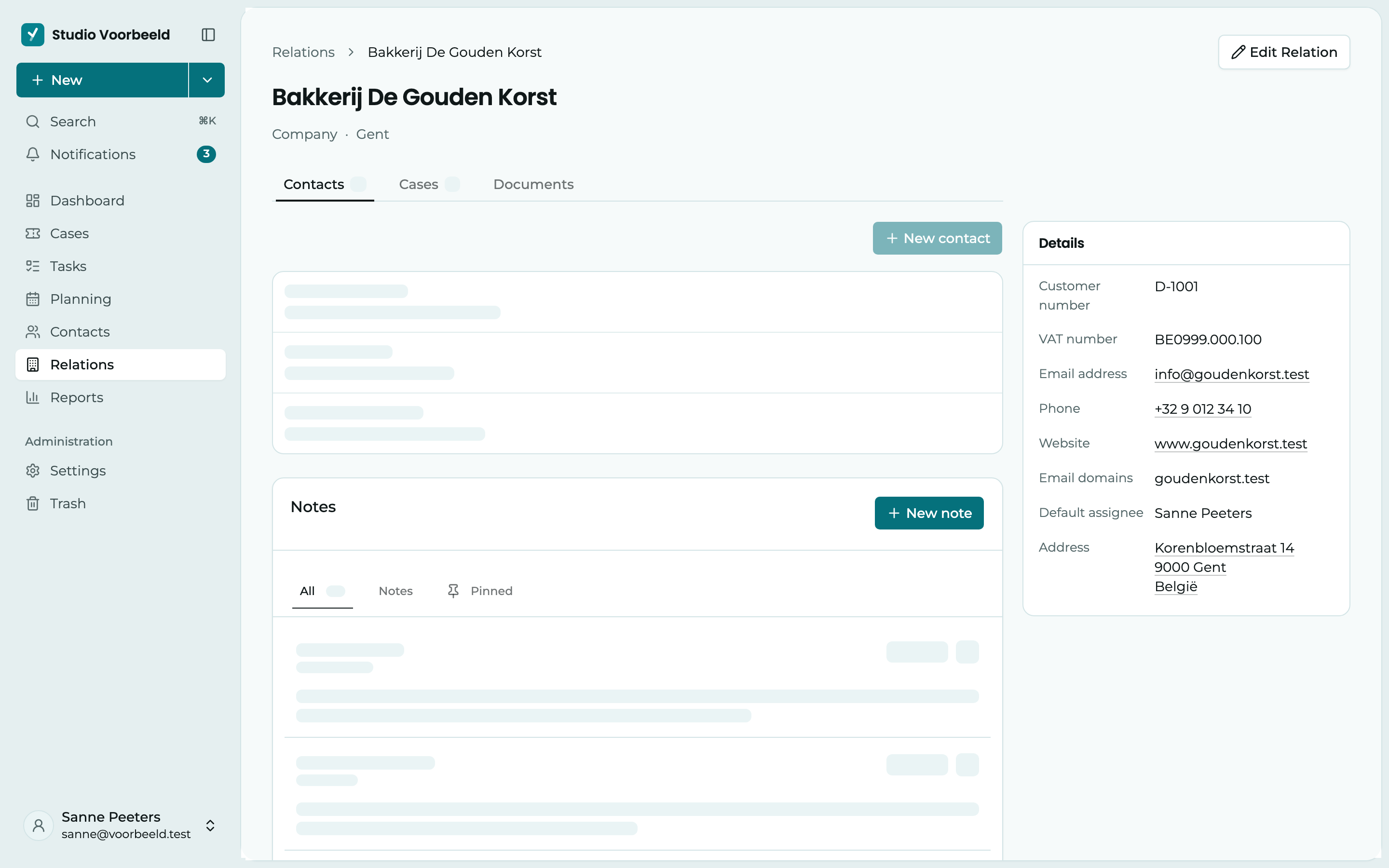
1 The tabs. For a relation, these are Contacts, Cases and Documents; for a contact, Cases and Documents. In the Cases tab, you see this customer's open and closed cases, and you search by number, subject or status.
2 Notes. What your team keeps track of about this customer. Click New note to add one. You pin important notes, so they appear under Pinned.
3 Details. The email address, phone number, address and the other details. For a contact, the Relations are here too. If details are missing, you fill them in with Add missing details. You open an address with Open in maps.
To change something, click Edit relation or Edit contact at the top. You change everything in a panel on the right and click Save.
You can also create a case from a contact, with Create case in the Cases tab. Then choose the relation and the contact in the form.
Who can do what?
Owners, admins and managers can create, change and delete relations and contacts. Members and viewers can only view them.
If you delete a relation or contact, it goes to the Trash and you can restore it. If you later open a link to a deleted relation or contact, you see that it is in the trash, with Restore if you are allowed to.