 Yusral
Members and roles
Invite and remove colleagues, and decide what they are allowed to do.
Go to Settings > Members. At the top, you choose between Members, the list of your colleagues, and Roles, what each role is allowed to do. You need the Owner or Admin role.
Invite a colleague
- Under Members, click Invite.
- Fill in the Email address and choose a Role.
- Click Send the invitation.
The window shows straight away what the colleague adds to the cost of your subscription. Your colleague gets an email with a link that is valid for 48 hours. What they do next is described in Accept an invitation.
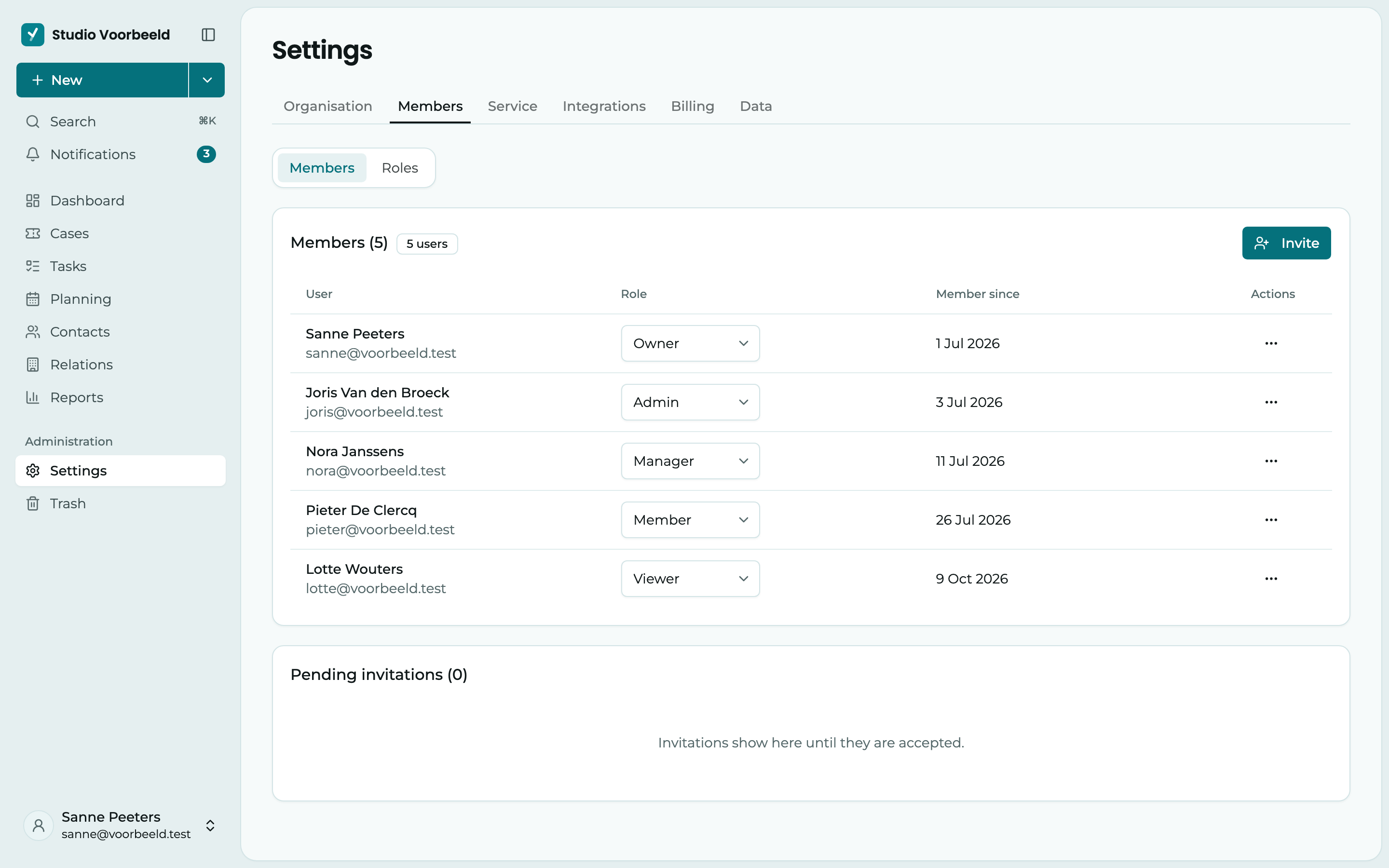
Invitations that have not been accepted yet appear under Pending invitations, with the date they were sent and when they expire. If you got the address wrong, choose Withdraw invitation and invite again.
Every colleague counts as a user
Your subscription charges per user. During the trial, you can have up to 5 members; next to Members, you see how many seats are taken. With a paid subscription, there is no maximum: when someone accepts your invitation, your subscription adjusts by itself. See Subscription and billing.
Manage a member
For each member, you can:
- change the Role in the list;
- Send password reset link, if someone can no longer get in;
- Delete the member. They lose access to this organisation straight away. Their cases and tasks stay.
If a removed member opens Yusral after that, they see You no longer have access to … with your organisation's name. If they are a member of another organisation, they land there. Otherwise, they can create their own organisation or ask an administrator to invite them again.
The fixed roles
Every organisation has five fixed roles. You can view their permissions, but not change them.
| Role | Can |
|---|---|
| Owner | Everything. The only one who accepts the data processing agreement and can delete the organisation. |
| Admin | Everything, except what only the owner can do. Manages settings, members and billing. |
| Manager | Everything to do with cases, tasks, relations, contacts, notes, documents and planning, including assigning, deleting and exporting. Sees the reports. Can view the trash and restore from it. No access to the settings. |
| Member | Create, view and update cases and tasks. Add notes and documents. Only view relations and contacts. Sees colleagues' calendars and schedules in their own calendar. |
| Viewer | View everything, change nothing. |
An invited colleague gets Member by default. You can't give the Owner role through an invitation.
The roles overview
Under Roles, the fixed roles are side by side, with what they can and can't do for the things that matter most, such as See all cases, not only their own, Assign cases to others, See reports and Change settings and manage members. Click a role's name for the full list of its permissions.
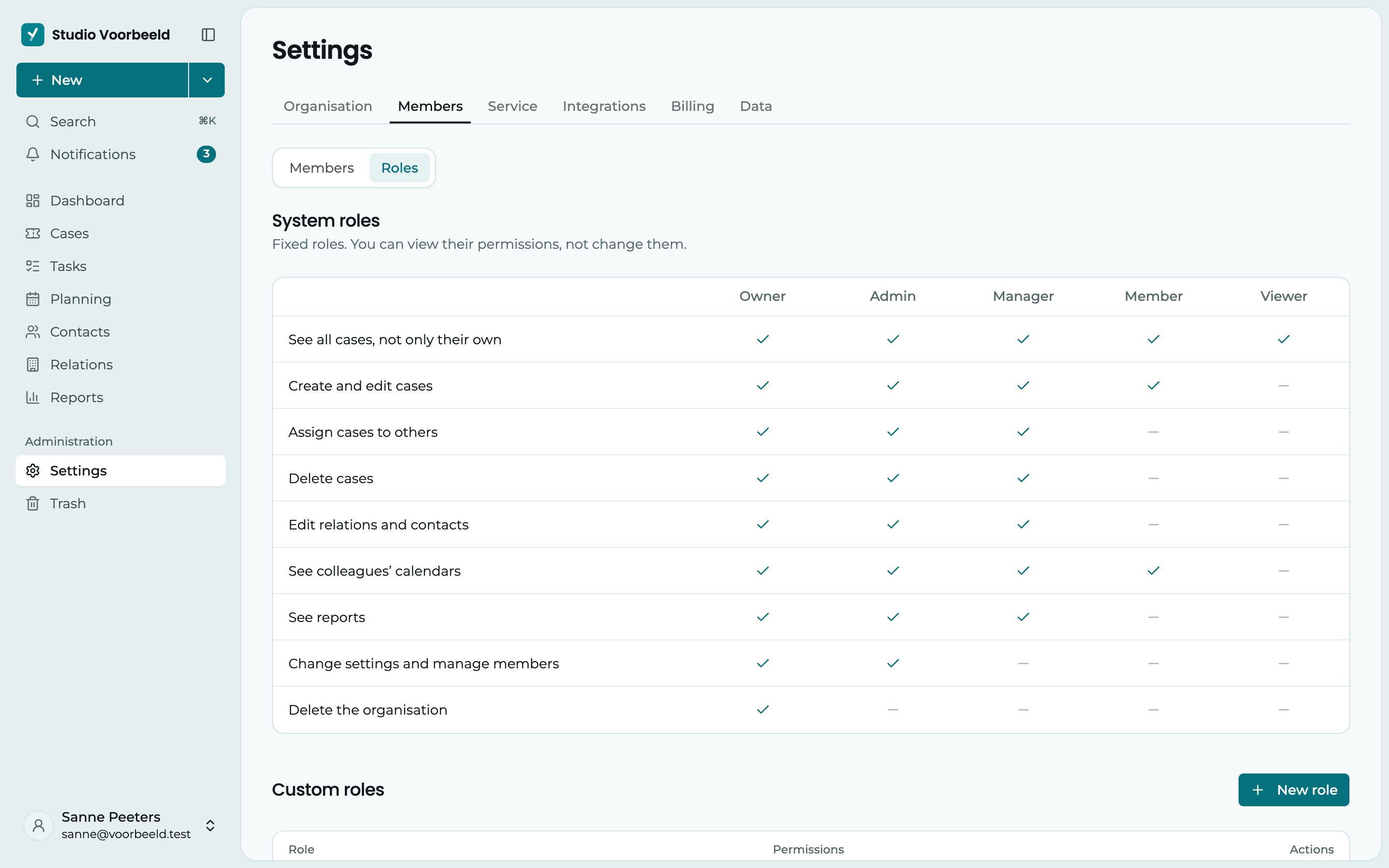
Own work only
By default, members and viewers see all the team's cases and tasks. If someone should only see what is assigned to them, give them a custom role without Also view colleagues' cases and Also view colleagues' tasks. How to create such a role is described below.
If you chose a sector where files stay separate during setup, such as a law firm, the Member (own work only) role is already ready. It is an ordinary custom role: you can rename, change or delete it.
Owners, admins and managers always see everything.
Create custom roles
Custom roles are part of the Professional subscription. If you switch to Starter, your custom roles stay, but you can no longer assign them.
Does no fixed role fit? Then create your own role, for example Intern or Accounts.
- Go to Settings > Members > Roles and, under Custom roles, click New role.
- Give it a Display name, as your colleagues see it in invitations and member management, and an Internal name. You can't change the internal name later.
- Tick what the role can do per module, or choose All for a whole module.
- Click Create.
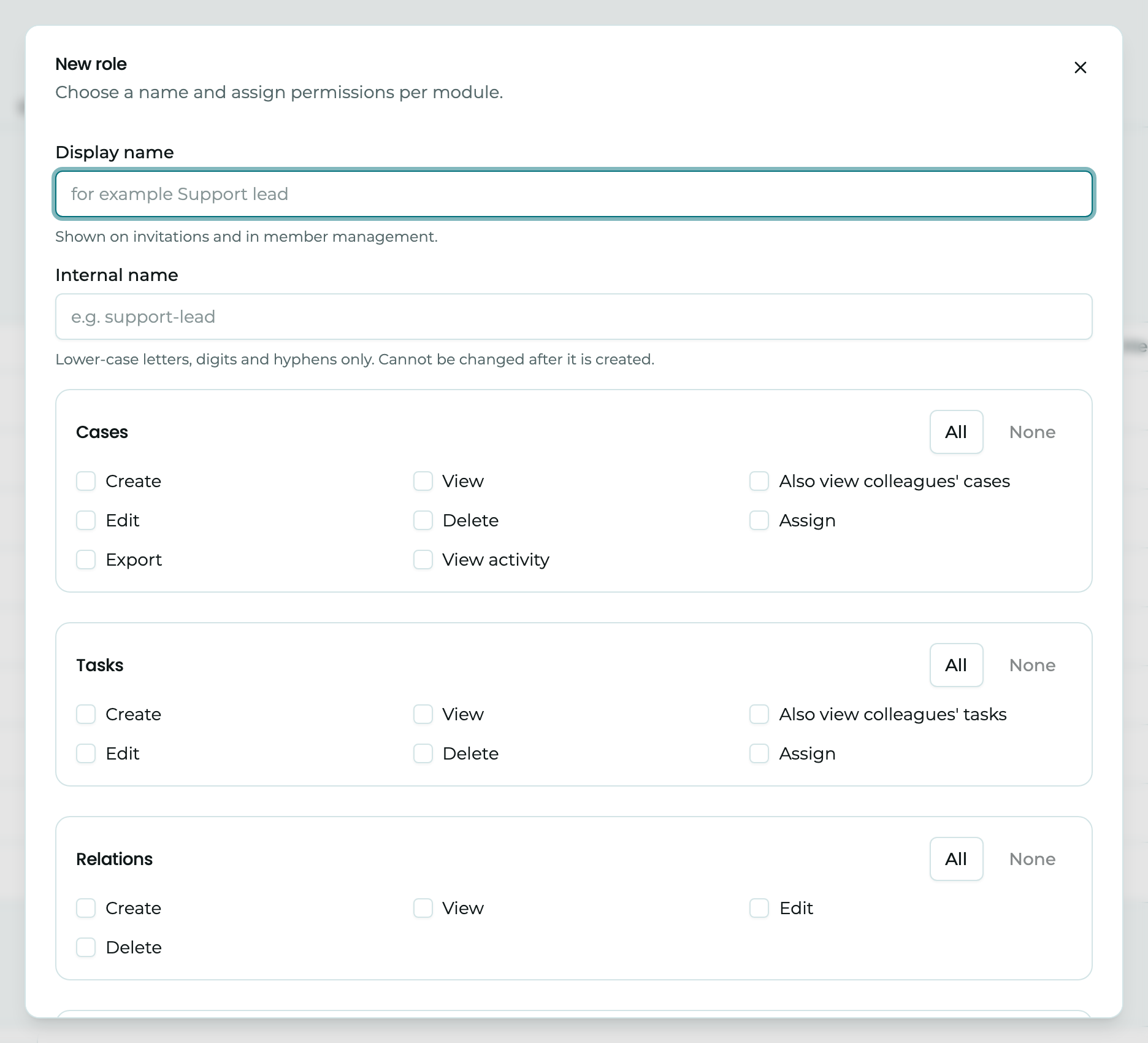
You then assign a custom role like a fixed role, under Members or in an invitation. In the list of custom roles, you see for each role how many modules it has permissions for. Through a role's menu, you choose View permissions, Edit or Delete.
Delete a role
If you delete a custom role, the colleagues with that role have no permissions left until you give them another role. So give them a new role first.