 Yusral
Connect email
Connect your mailbox so customer email becomes a case by itself, and choose which server your replies go out through.
If you connect the mailbox your customers email, such as info@ or support@, every new email becomes a case. Replies go to the right case. This is the step that makes the most difference.
Go to Settings > Integrations > Email. You need the Owner or Admin role.
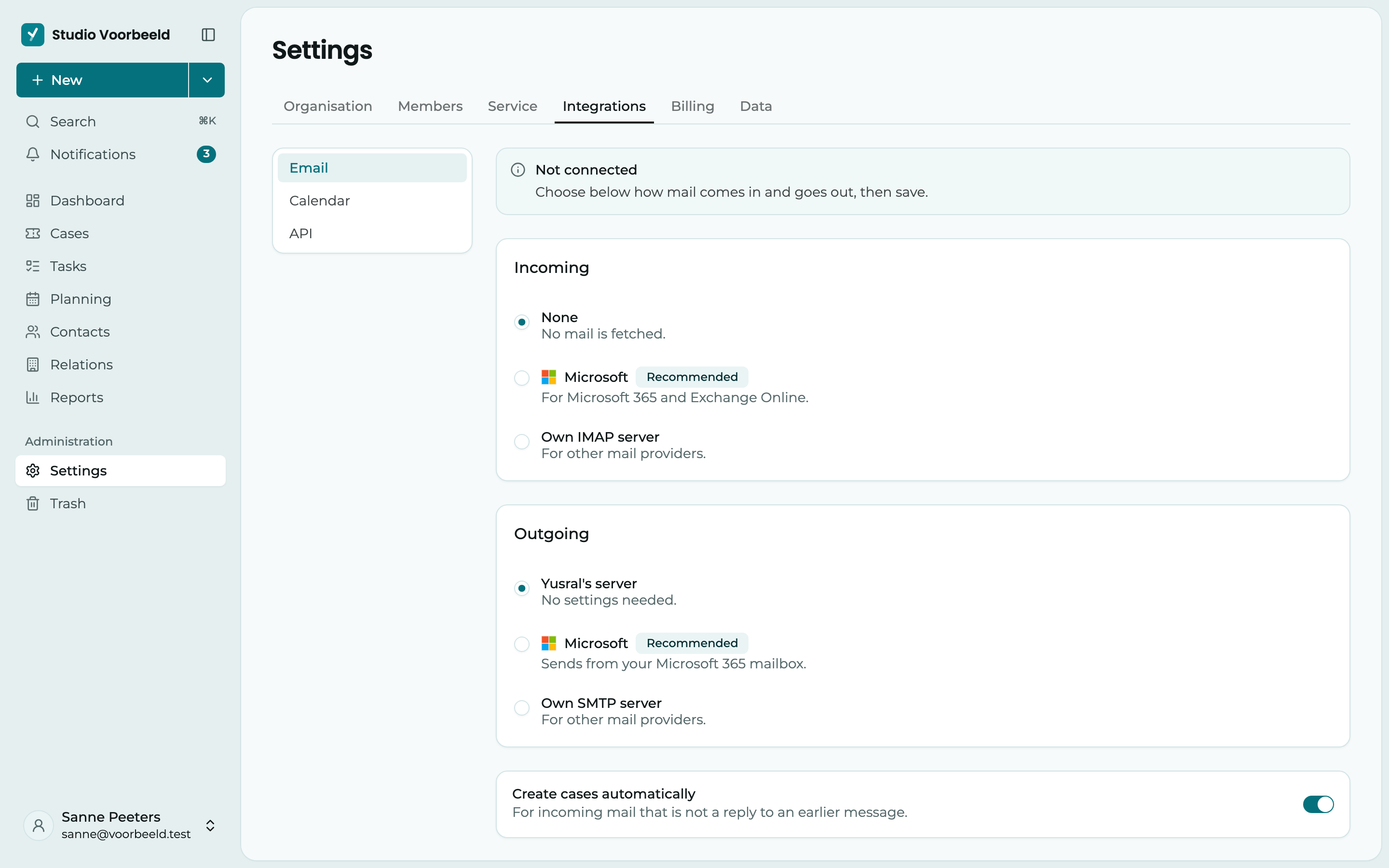
At the top, you see whether the connection works: Connected, Connection failed, Reconnect needed or Not connected. If everything is fine, it also says when the mailbox was last checked.
Below that, choose how email comes in and goes out, and click Save.
Incoming email
Under Incoming, choose where Yusral fetches the email from. With None, no email is fetched.
Microsoft (recommended)
For Microsoft 365 and Exchange Online.
- Choose Microsoft and click Save. Only then can you connect Microsoft.
- Under How do you want to connect?, choose one of the two ways, see the table below.
- Click Connect through admin consent or Connect with a user account and sign in at Microsoft.
- Find the Mailbox: type at least 2 characters of a name or address. You recognise a shared mailbox by Shared.
- Choose the Folder new email is read from, usually the inbox. If you don't see a new folder, click Refresh folders.
- Click Save.
| Way | When |
|---|---|
| Admin consent | An administrator of your Microsoft 365 environment gives consent once. The connection keeps working when someone leaves. The best choice for a shared mailbox such as info@. Only this way do you also find Microsoft 365 groups and distribution lists when searching. |
| User account | You sign in with an account that has full access to the mailbox. No administrator needed, but the connection stops if that account disappears. |
Which permissions does a user account ask for?
With User account, Yusral only asks Microsoft to read and send email, including in shared mailboxes you have access to, and to search names and addresses. That doesn't need an administrator's approval. If Microsoft asks for it anyway, your organisation has set it up that way. Then ask your Microsoft administrator to approve the connection.
Another email provider
Choose Own IMAP server and fill in the Server, the Port, your Username and your Password. Leave SSL/TLS on, unless your provider says otherwise. You get these details from your email provider. Click Test connection, choose the Folder and click Save.
Yusral keeps track itself of which emails it has already fetched. So an email someone already opened in Outlook or webmail also becomes a case. Fetched email is marked as read. With a new connection, Yusral fetches the email from the last hour, so a test email you just sent also comes in.
Create cases
If Create cases automatically is on, every new email that is not a reply to an earlier message becomes a new case. If it is off, only replies to existing cases come in.
Outgoing email
Under Outgoing, choose how your replies to customers go out.
- Yusral's server: no settings needed. Your replies go out from our mail server.
- Microsoft: your replies go out from your own Microsoft 365 mailbox and also appear in the Sent Items folder. For this, Microsoft must first be connected under Incoming.
- Own SMTP server: for other email providers. Fill in the Server, Port, Username and Password, plus the Sender address and the Sender name your customer sees. Click Test connection.
Which one do I choose?
If you work with Microsoft 365, choose Microsoft for both incoming and outgoing. Customers then get your reply from the address they know, and everything also appears in Outlook.
If the connection stops
If you see Reconnect needed, access to the mailbox has expired, for example because a password changed. Connect again and sign in with the same account.
If you see Connection failed, the mailbox returned an error at the last check and no new email comes in. You see what went wrong, and under Last error: when. Fix it and click Try again.
Disconnect
On the Microsoft connection, click Disconnect and confirm. New email in that mailbox then no longer creates cases and no longer updates existing cases. Existing cases and messages stay. Connecting again needs a new sign-in at Microsoft.
If you don't want to fetch any email at all any more, choose None under Incoming and click Save.
How long we keep email logs
Yusral keeps technical logs of the email it sends and receives, for example whether an email was delivered. We keep those for 30 days. The emails themselves, in your cases, simply stay.