 Yusral
Planning
Your team's Outlook calendars side by side, and scheduling tasks by dragging.
Planning is part of the Professional subscription and works with Microsoft 365 Outlook calendars.
In Planning, you see your colleagues' calendars side by side. You see straight away who is free, and you schedule a task or event without emailing back and forth.
Before you start
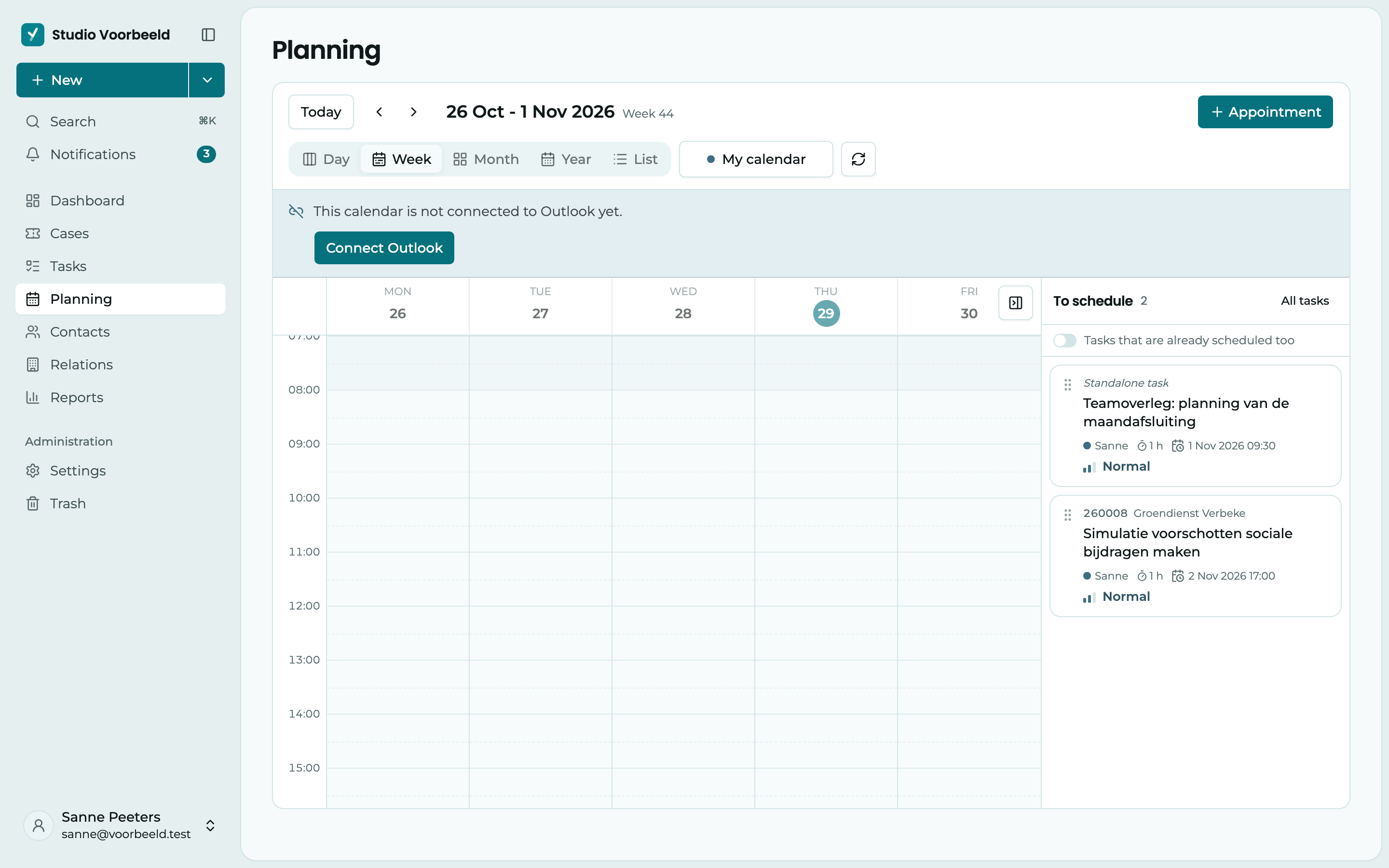
Everyone connects their own Outlook calendar, under Profile > Calendar > Connect Outlook. If your calendar is not connected yet, the Connect Outlook button also appears at the top of Planning. People who are not connected don't appear in Planning. See Outlook calendar and connected apps.
An administrator sets the working hours, the default duration of a task, the time zone and the weekends under Settings > Integrations > Calendar.
Look around
- Choose the view: Day, Week, Month, Year or List. In the list, you search with Search in events….
- Today takes you back to today.
- Choose who you see: Everyone, Only me, or search for a colleague and tick who you want to add.
- The button with the arrows fetches the calendars from Outlook again, for example when a colleague has just scheduled something.
Click an event to open it. On the right, you then see the time, whose calendar it is in, the organiser, the location, the attendees with their response (anyone optional is marked optional) and the description. If it is a Teams meeting, click Join the Teams meeting. At the bottom, you choose Edit, Open in Outlook or Delete.
Schedule a task
On the right is To schedule: the open tasks of the colleagues you are looking at now that don't have a place in a calendar yet. Turn on Tasks that are already scheduled too to see those as well. If you need more room, hide the panel with Hide the task panel.
- Drag a task to a free moment in the right colleague's calendar. Or click the task to schedule it on its deadline.
- Check the details in the Schedule task window.
- Click Schedule. The event is in that colleague's Outlook calendar straight away.
How long the event lasts comes from the task's Duration, or otherwise from your organisation's default duration. Drag the bottom edge of an event to make it longer or shorter.
Create an event
Click Event, or click a free moment in the calendar. In the Schedule an event window, fill in:
- Subject, Team member, and when the event starts and ends, or All day.
- How the time shows in Outlook under Availability in Outlook, for example Busy or Tentative.
- A Location, or turn on Teams meeting for an online event.
- Attendees: search for a contact or a colleague, or type an email address. You recognise colleagues by the Internal label. They get the invitation through Outlook. Click a name to make someone optional, and click again to make them required. Outlook takes that over as it is.
- A Description, if you like.
Click Schedule. If the team member already has something at that time, Yusral warns you with … already has something on then. You can still create the event.
What happens in Outlook
Everything you do in Planning shows up in Outlook straight away, and the other way round.
- If you move an event in Planning, it also moves in Outlook.
- If you delete a scheduled task from Planning, the event disappears from Outlook. The task itself stays, it is just no longer scheduled.
Who can do what?
What you see and can change depends on your role:
- Viewers only see their own calendar by default and don't schedule anything.
- Members see the whole team's calendars and schedule in their own calendar.
- Managers, admins and the owner also schedule in other people's calendars.