 Yusral
Subscription and billing
What Starter and Professional include, Enterprise on request, storage, the trial, and changing or cancelling your subscription.
The subscriptions
You pay per user. Prices exclude VAT.
| Starter | Professional | |
|---|---|---|
| Per user, per month | € 24 | € 39 |
| Per user, per year | € 240 | € 390 |
| Unlimited cases | ✓ | ✓ |
| Cases, tasks and deadlines | ✓ | ✓ |
| Contacts and relations | ✓ | ✓ |
| Email integration with your own mailbox | ✓ | ✓ |
| Standard roles and permissions | ✓ | ✓ |
| Planning with team and personal calendars | ✓ | |
| Reports on incoming work, reply times and workload | ✓ | |
| Microsoft Calendar integration | ✓ | |
| Custom roles and permissions | ✓ | |
| PDF export of cases | ✓ | |
| Full history per case | ✓ | |
| API and MCP | ✓ | |
| AI assistant: triage, summaries and draft replies | ✓ | |
| File storage | 5 GB per user, at least 10 GB | 20 GB per user, at least 100 GB |
| Emails per day | 1,000 | 10,000 |
Yearly, you pay for ten months: two months are free.
Do you see … is part of Professional somewhere? Then that feature belongs to Professional. With View subscriptions, whoever manages billing can switch straight away.
Enterprise
For teams of 25 users or more, there is Enterprise, on request: tailored limits for storage, email and AI, and a dedicated contact person. You find it below the subscriptions on the billing page. Click Get in touch, or email service@yusral.com.
The trial
Every new organisation gets 14 days free, with no payment details. You choose a subscription when you set up your organisation and click Start 14 days free. You then go to Stripe, our payment partner, in the same language and colours as Yusral. Your email address is already filled in, and no card is needed. You also fill in your VAT number there, so it appears on your invoices. If you have a discount code, you fill it in there.
- At the top, you see how many days are left, with the Add a payment method button.
- Three days before the end, you get a reminder by email.
- During the trial, you can have up to 5 members.
- If you don't add a payment method, the subscription stops by itself after 14 days. Your data is kept, and you can choose a subscription later and carry on working.
An organisation gets one trial. If you cancel and start again later, you pay straight away.
Manage your subscription
Go to Settings > Billing. The owner and the admins can do this.
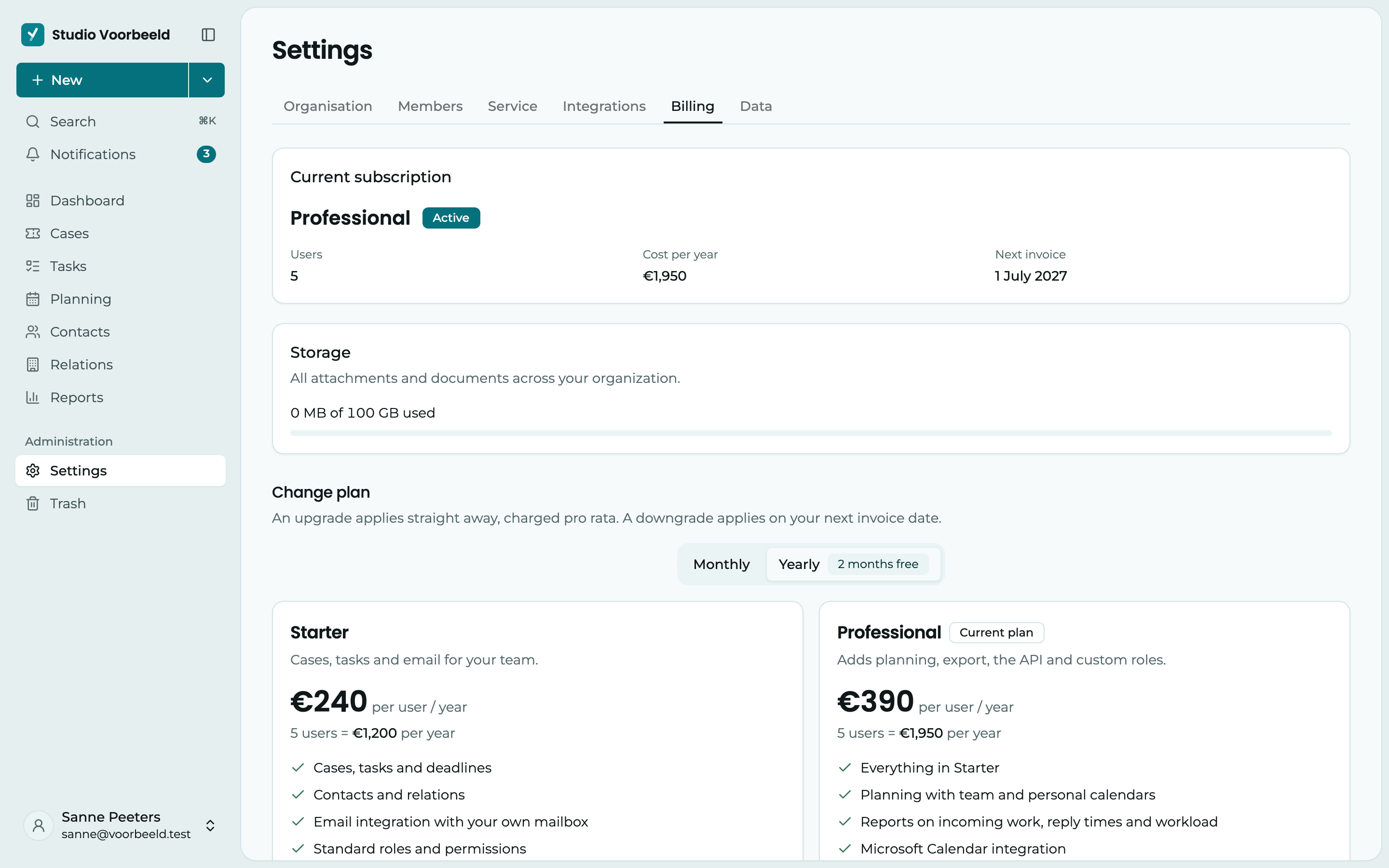
Under Current subscription, you see your subscription and its status, the number of Users, the Cost per month or year and the date of the Next invoice. If you have a discount, it is shown too, with the end date if there is one.
Adding or removing users
You don't have to change the number of users yourself. When someone invites a colleague, the window shows straight away what they cost extra. As soon as the invitation is accepted, a user is added, charged pro rata. If you remove someone, a user comes off. The difference is settled on your next invoice.
Storage
Under Storage, you see how much space your organisation's attachments and documents take up together, for example 3.2 GB of 100 GB used. Your space grows with the number of users, see the table above.
- At 80%, you see that your storage is almost full, and the owner and the admins get an email. Clean up old attachments or choose a bigger plan.
- If your storage is full, uploading still works for now, so nobody gets stuck in the middle of a case. You get another email.
- Only well over your limit, at one and a half times your space, does uploading stop working. Incoming emails still come in as usual.
If you have agreed a custom limit with us, you see Agreed limit.
Switching subscription
Under Change plan, the subscriptions are side by side. Choose Monthly or Yearly at the top and click Choose this plan on the subscription you want. With Yearly, you see what it costs per month, with the monthly price struck through beside it.
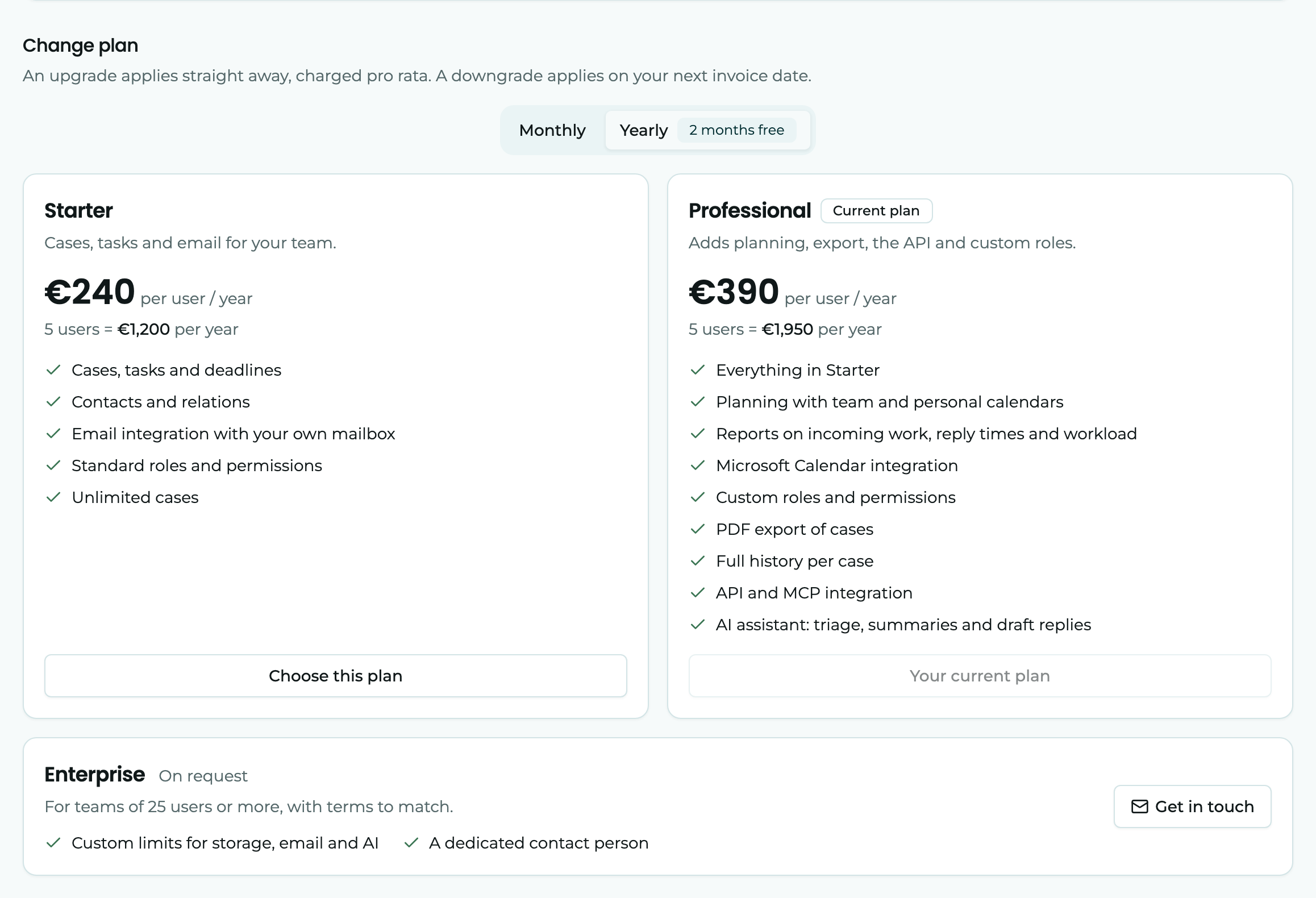
- To Professional, or from monthly to yearly, takes effect straight away. You pay the difference for the rest of the period.
- To Starter, or from yearly to monthly, takes effect on your next invoice date. Until then, you keep what you have.
Changed your mind before a change takes effect? Click Cancel the change.
Invoices and payment method
Open customer portal opens Stripe's portal in a new tab. There, you download your invoices and change your payment method and billing details.
If a payment fails
If a payment fails, you get an email and see Fix the payment at the top. You keep access for 7 more days to sort it out. After that, Yusral first asks for a valid payment before you can carry on.
Nothing is deleted during that time. If the payment is still open after that, the same terms apply as when you cancel: we keep your data for 90 days after those 7 days end, you get an email a week ahead, and after that there are another 30 days until everything is erased. Pay within that time and you simply carry on.
Cancel
At the bottom of the billing page, under Cancel subscription, click Cancel through the customer portal. You then cancel in Stripe's portal, which opens in a new tab.
- You can keep working until the end of the period you have already paid for. Under Current subscription, you see until when.
- After that, we keep your data for another 90 days. During that time, you can come back without losing anything.
- A week before those 90 days are up, you get an email, so you can still make an export. After that, your organisation is marked for deletion and permanently erased after another 30 days.
- Changed your mind before the end of the period? Click Withdraw cancellation.
Want a copy of all your data beforehand? See Your data.