 Yusral
Profile and language
Change your name and email address, and choose the language, time zone and appearance you work in.
Open your profile through the user menu, Profile. On a large screen, that menu is at the bottom of the sidebar; on a narrow screen, at the top right. You find the General, Security, Notifications, Signature, Calendar and Connected apps tabs there.
General has three cards: Profile details, Language and time zone and Appearance.
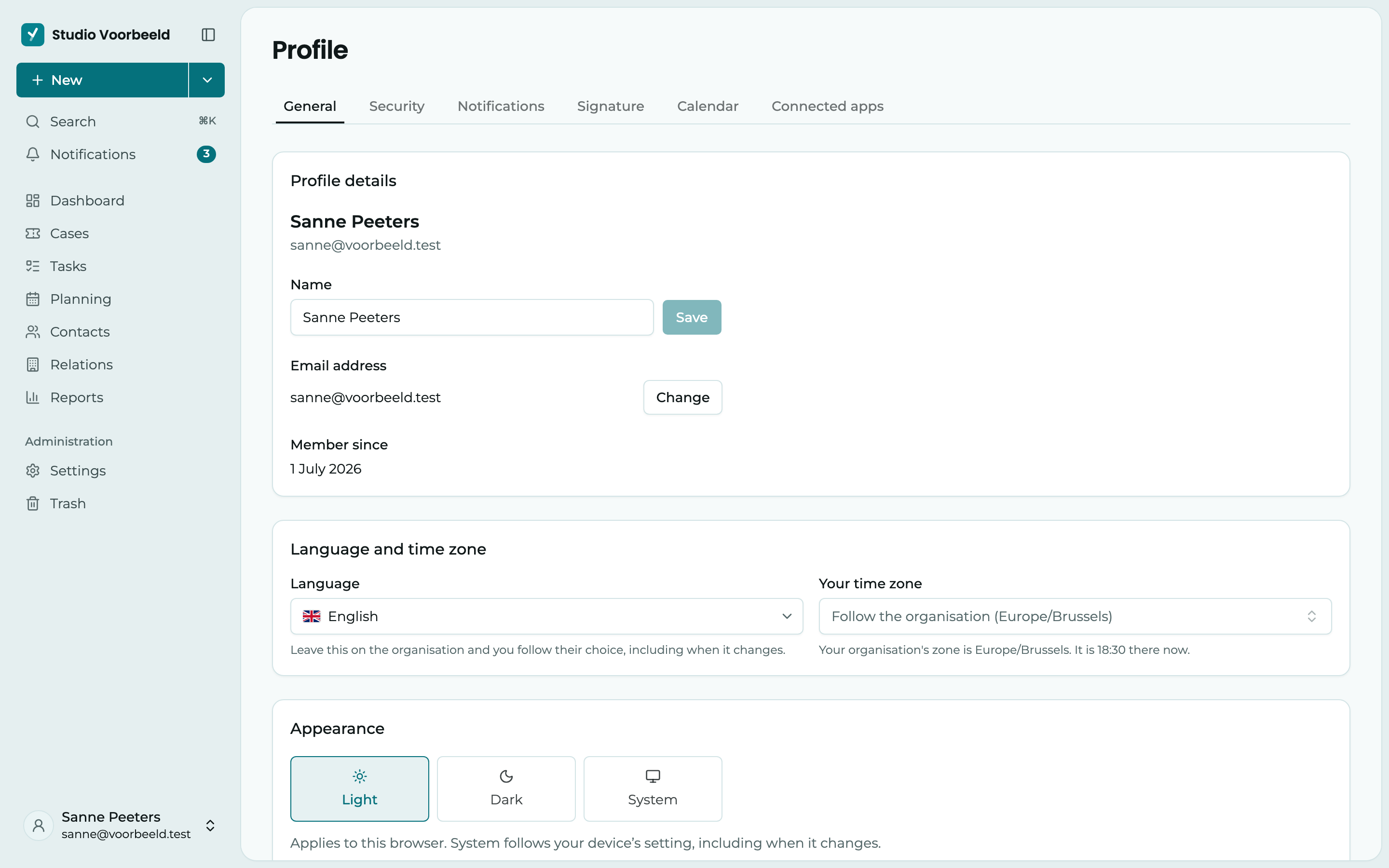
Your name
Change your name under Name and click Save. Your colleagues see your new name straight away, in cases, tasks and notes.
Your email address
- Next to Email address, click Change.
- Fill in your New email address and click Send link.
- Open the email at your new address and click the link. Only then does your email address change.
The link stays valid for an hour. Until you click it, you sign in with your old address. Made a typo? Click Use a different address. At your old address, you get an email saying a change was requested. If that wasn't you, change your password straight away.
Did you open the link in a browser where you are not signed in? Your address has still been changed. Sign in with your new address after that.
Signing in with Microsoft
If you sign in with your organisation's Microsoft account, your email address is managed there and there is no Change button. You can still change your name here.
Language and time zone
Under Language and time zone, you choose:
- Language: Nederlands, English, Français or Türkçe, each with its flag. If you choose Follow the organisation, you get the language your administrator chose for the organisation, even if it changes later.
- Your time zone: decides how times and deadlines are shown. By default, you follow the organisation here too. You then see which zone that is and what time it is there now.
Your choice is saved straight away.
Choosing a different language only changes what you see. Emails to customers go out in the organisation's language, and what your organisation wrote itself, such as statuses and quick replies, stays in the language it was written in.
Appearance
Under Appearance, you choose how Yusral looks:
- Light: a light background.
- Dark: a dark background.
- System: follows the setting of your computer or phone, even when it changes. If your device switches to dark in the evening, Yusral switches along with it.
In dark mode, received emails and signatures sit on a white sheet. Emails are laid out for a white background, and this keeps black text in a signature readable, for example.
Your choice applies to the browser you make it in. If you work on a second computer or on your phone, choose it there again.